
Your stream desk, on a tablet
OnAir is an Android tablet app that controls OBS Studio or Streamlabs Desktop while you stream: scenes, audio and shortcuts at your fingertips, with Preview and Program like a real switcher.
For Android 10 or newer, with the OnAir Host installed on the streaming PC.
- Google PlayComing soon
- Microsoft StoreComing soon
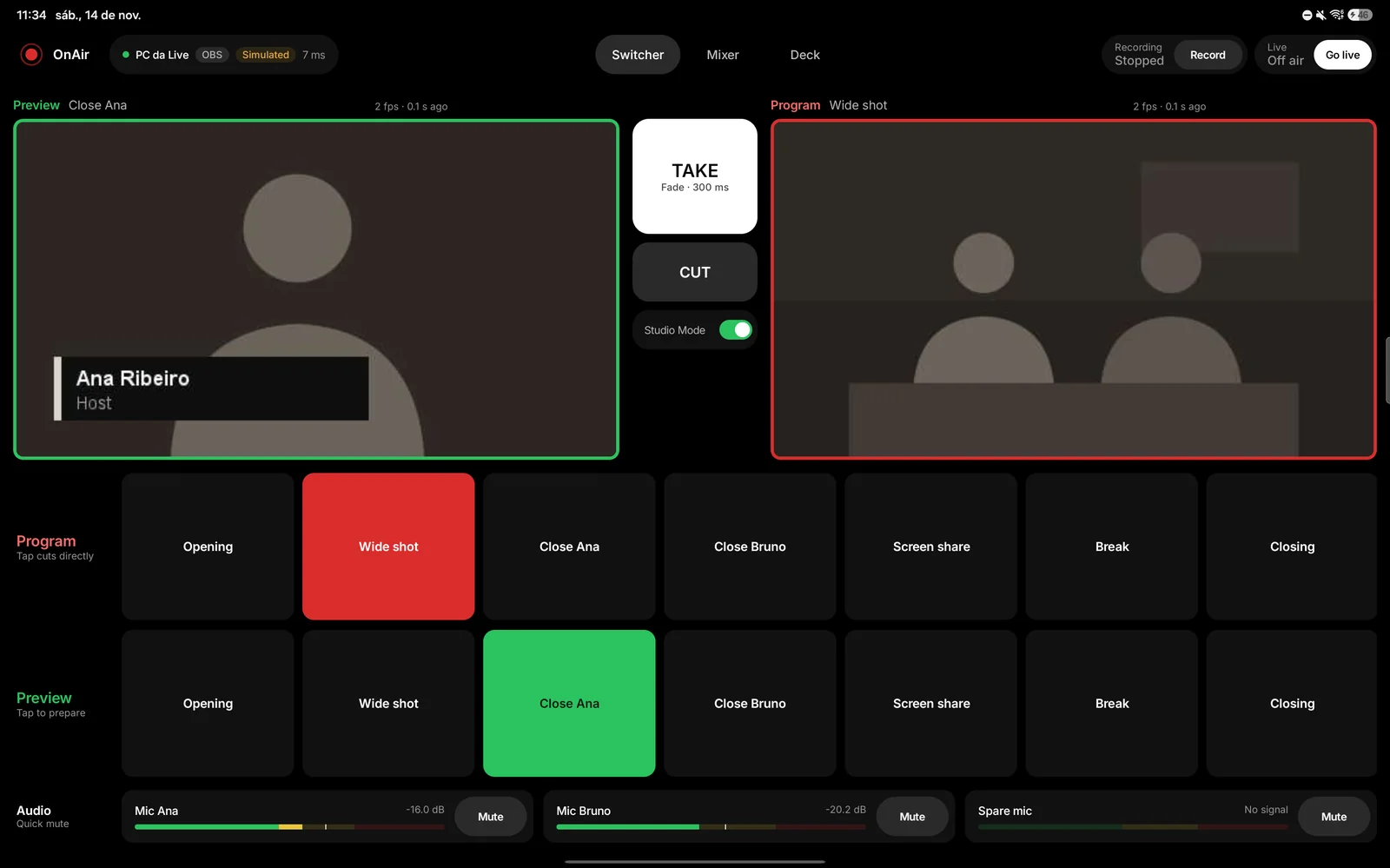
From tablet to program, via the PC.
OnAir has two parts. The app lives on the tablet. The OnAir Host lives on the same PC as OBS or Streamlabs, in the system tray. Everything happens on your local network: there is no account, no developer server and no internet in the path.
Tablet
The OnAir app, in landscape. Switcher, Mixer and Deck. One tablet can hold several PCs.
- local network, paired with a code
PC: OnAir Host
A small Windows program. It accepts several tablets and shows a settings page only on the PC itself.
- inside the PC only
OBS Studio or Streamlabs Desktop
Controlled through the features the program itself offers for that.
What OnAir does today.
This is what exists in version 0.1.0. What is still being built is listed further down, separately.
Operation bar
Shows the connection to the PC and to the program, and starts the stream and the recording. Ending the stream or stopping the recording takes a 2-second hold, so nobody drops the show by accident. In OBS you can also pause the recording. Elapsed time is always in view.
Switcher
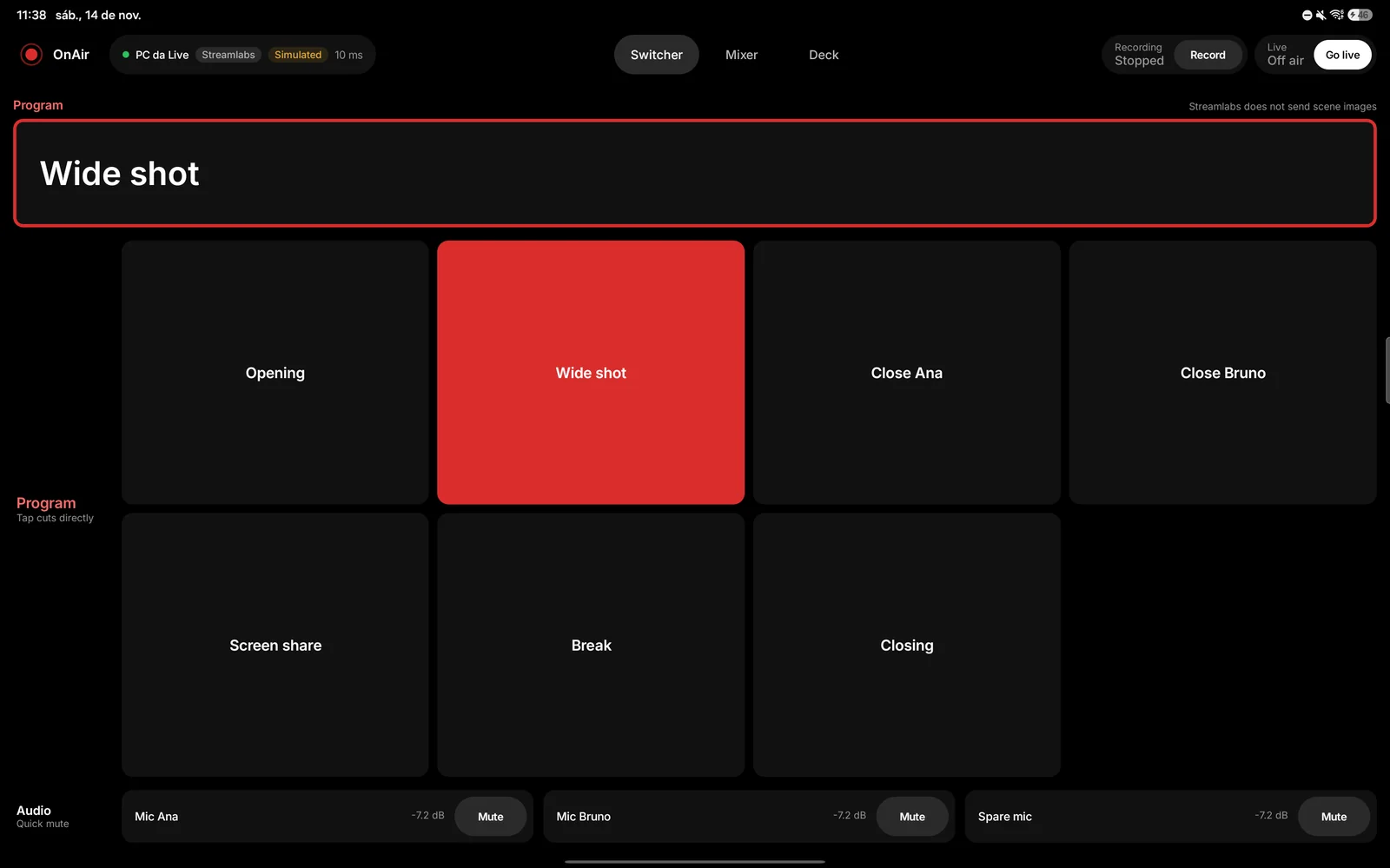
Scenes in rows, with each one's state in its frame. With OBS in Studio Mode you set up on Preview and send it Program with TAKE (with the transition) or CUT, with thumbnails at 1, 2 or 5 frames per second. Without Studio Mode, every tap cuts directly. With Streamlabs the Switcher is the simple version, without thumbnails. A Quick mute strip mutes up to 3 audio sources with one tap.
Mixer
A fader per audio source, mute and the level in decibels. With OBS, level meters and a clip indicator. Streamlabs does not send audio levels, so there are no meters with it.
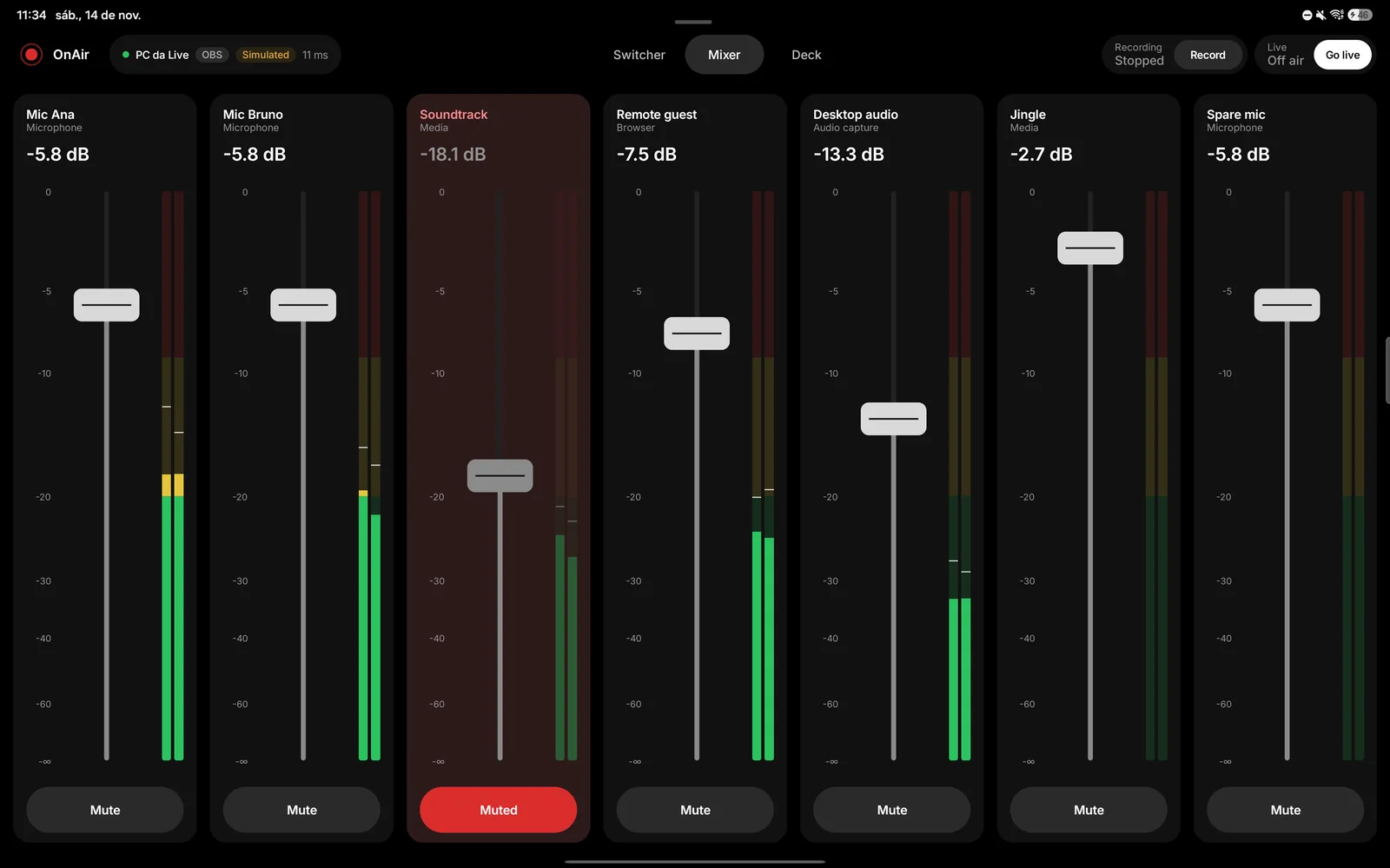
The Mixer with OBS: faders, meters and mute. Deck
A 6 by 4 grid of buttons, each with a label and one of five colors. Each button switches scene or shows, hides or toggles an item, and lights up from the real state in the program. You edit the grid on the tablet itself.
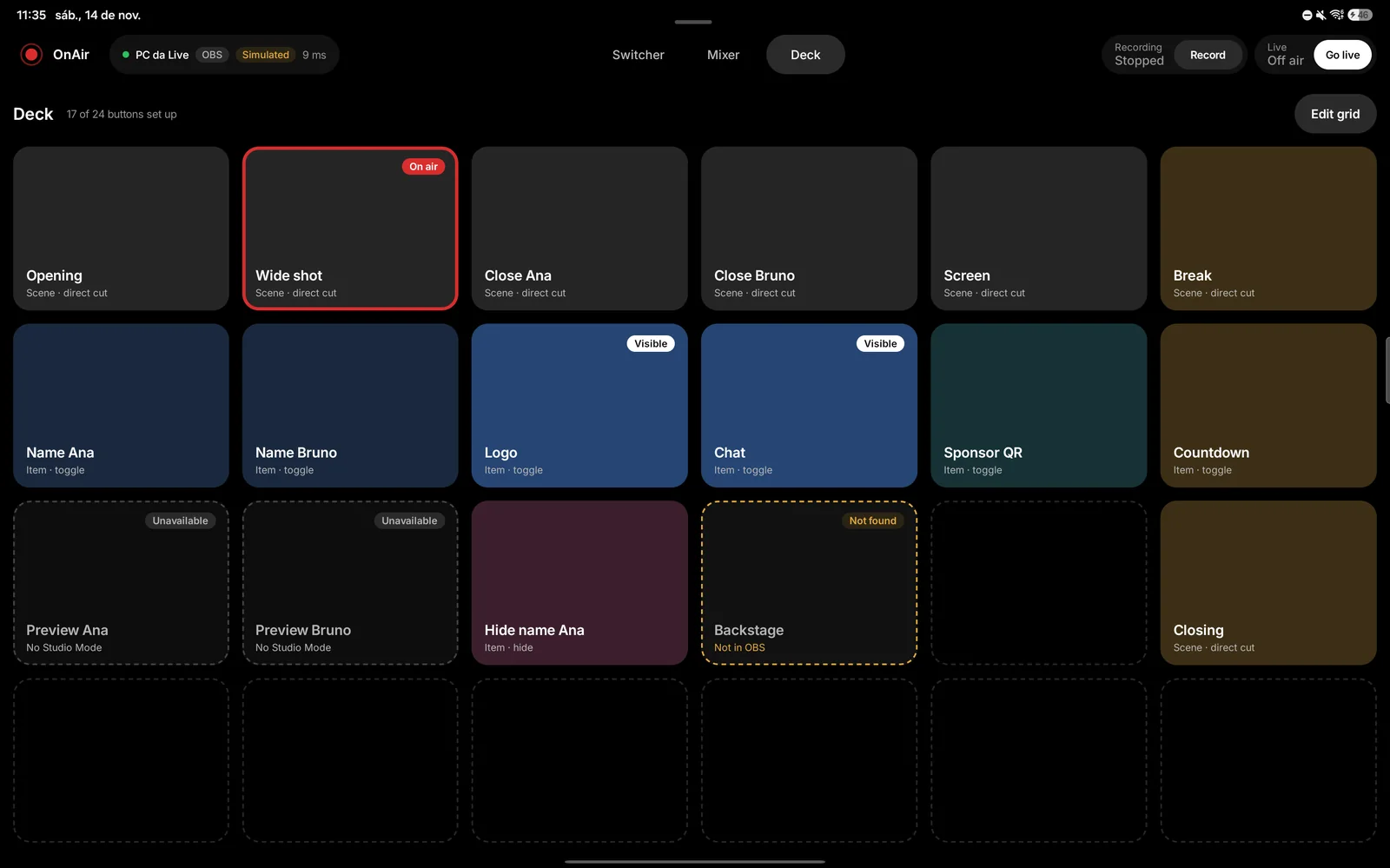
The Deck with live state. Pairing and reconnection
The tablet looks for PCs on the network or accepts a typed address, and the PC lets the tablet in with a 6-digit code that lasts 2 minutes. If the connection drops, the app retries by itself, shows that commands are paused and, once back, rebuilds its state from the program.
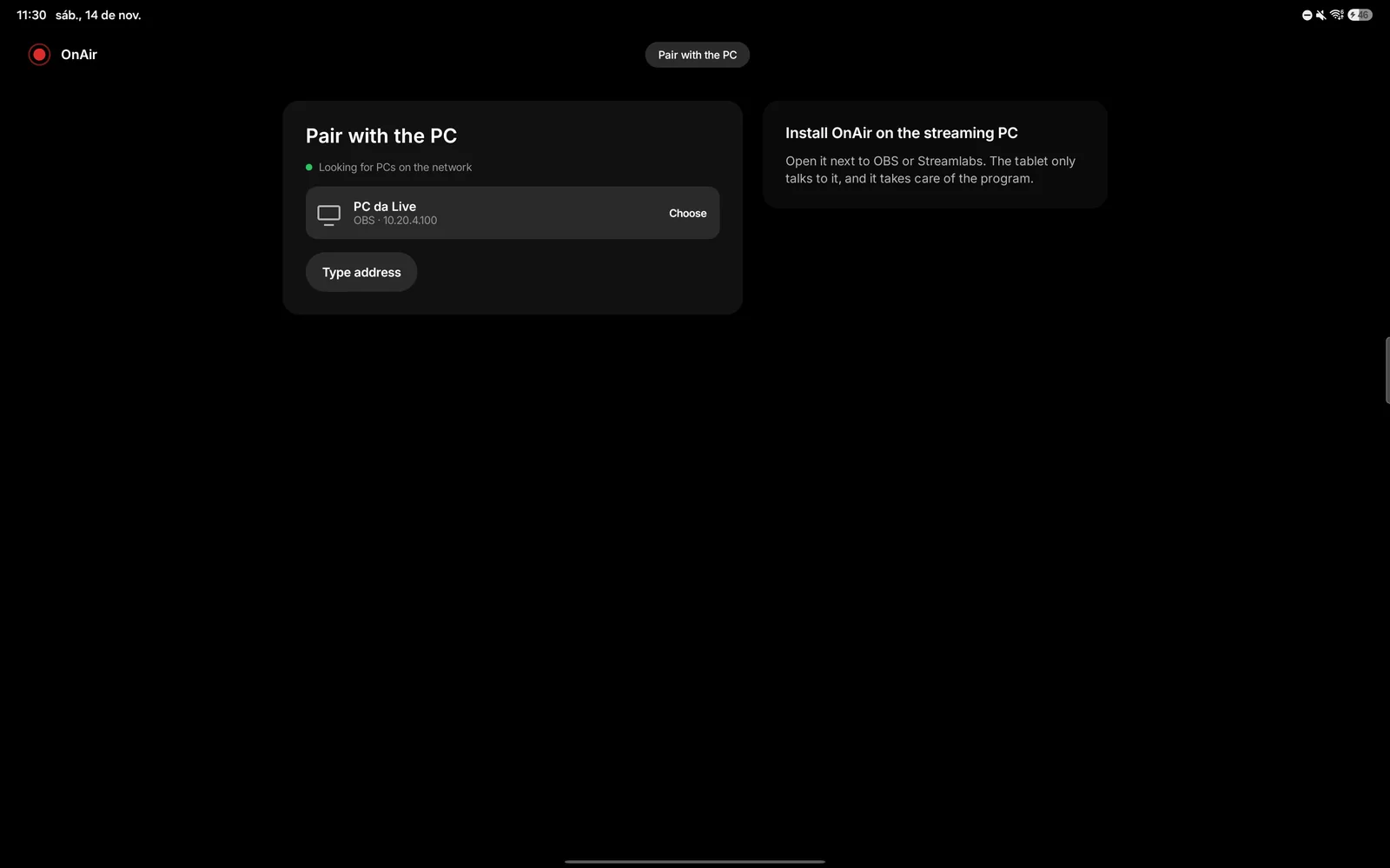
The tablet looks for PCs on the network. Settings
Scenes and order on the Switcher, Mixer sources, Deck grid, several PCs and the app language (Portuguese or English). The scene, Mixer and Deck setup lives on the PC, per program, and applies to every tablet.
OnAir Host
Tray icon, a local settings page, a choice between OBS and Streamlabs (or automatic), start with the computer, log files and a Windows installer that already creates the firewall rule.
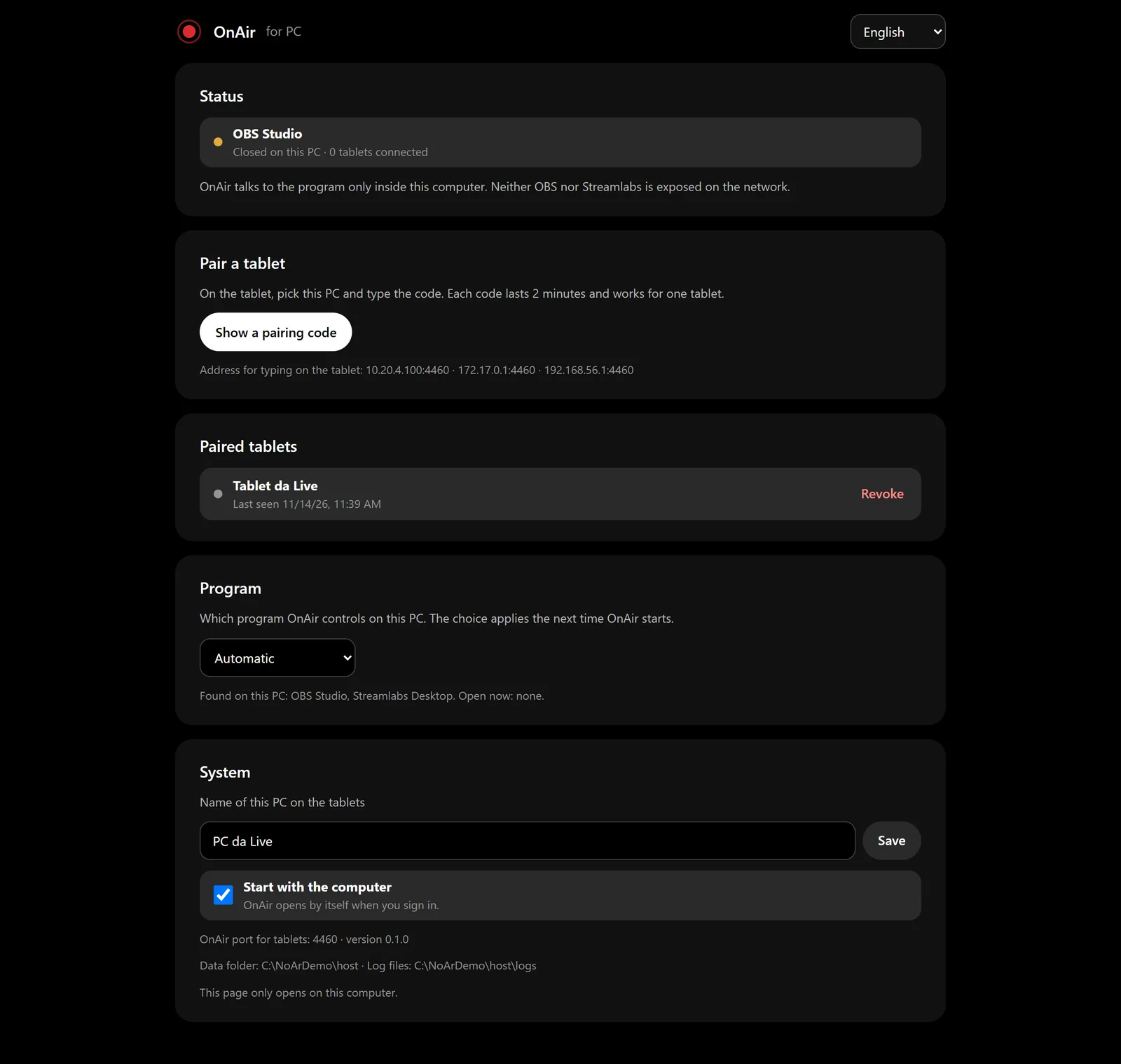
The host page. It opens from the tray menu or at http://127.0.0.1:4460/ and only works on the PC itself.
What differs in each program.
OnAir uses what each program allows. Where the program does not offer a feature, OnAir does not pretend it does.
| Feature | OBS Studio | Streamlabs Desktop |
|---|---|---|
| Preview, TAKE and CUT (Studio Mode) | Yes | No. The Switcher cuts directly, and Studio Mode must stay off |
| Scene thumbnails | Yes | No |
| Level meters and clip in the Mixer | Yes | No |
| Pause recording | Yes | No |
| What to set up in the program | Turn on the WebSocket server | Nothing |
| Tested version | OBS 33.0.0 (obs-websocket 5.7.6). Requires OBS 28 or newer | Streamlabs Desktop 1.22.2 |
What you need.
Tablet
Android 10 (API 29) or newer, used in landscape. The reference is a 10-inch tablet, adapted to 8 and 11 inches.
Streaming PC
Windows 10 or 11 (verified on Windows 11), with OBS Studio 28 or newer, or Streamlabs Desktop, and the OnAir Host. Tablet and PC on the same local network. Packages for macOS and Linux are in preparation and have not been tested yet.
Nothing leaves your network.
In this version the app and the host ask for no account, do not measure your use, send no crash reports and include no third-party components that collect data. They send nothing to the developer or to the internet. Scenes, names and passwords stay on your tablet and your PC.
One limit you need to know: in this version the conversation between tablet and PC is not encrypted. Use it only on a network you trust.
In development.
Not in the current version, and with no promised date:
- T-Bar for in-progress transitions
- Telemetry cards (program statistics) and alerts
- Streamer.bot integration
- Full Deck editor, with icons and several pages
- USB cable connection in the app
- Encrypted communication (TLS) between tablet and PC
- Host for macOS and Linux
Made for tapping in the dark.
Touch targets of at least 48 dp. High contrast, with color reserved for state. Fixed landscape and a screen that stays on during operation. Vibration on tap and the fader ticks can be turned off in Settings.
Test before you go live.
Install the host, pair the tablet and walk through the manual with the program open. Nothing replaces a rehearsal before the real broadcast.