
User manual
From zero to your first live show: install, prepare the program, pair the tablet and operate the Switcher, Mixer and Deck.
Overview
OnAir has two parts: the app on the tablet and the OnAir Host on the PC. The host needs OBS Studio (28 or newer) or Streamlabs Desktop on the same PC, and the app on the tablet. The app needs the host. The tablet only talks to the host, and the host takes care of the program.
One tablet can have several paired PCs, and one PC can have several tablets. This manual follows the order you will use the first time.
Scenes and names of PCs and tablets in the images are test data.
In the app and on the host page, the product is called OnAir when the language is English. The Windows program, its tray icon, its installer file and the firewall rule keep the name NoAr.
1. Install the host on the PC
Download the installer (a .msi file) from the download page and run it. The installation is per machine: Windows asks for administrator permission (UAC). The installer creates the shortcut and a Windows Firewall rule named NoAr Host, which lets the tablet reach the PC.
If the download page says the installer is not signed, Windows may show “unknown publisher” or SmartScreen. If you downloaded it from this site, check the SHA-256 on the download page before continuing.
Once open, the host sits in the tray, near the clock. The icon menu has Open settings, Pair a tablet and Exit.
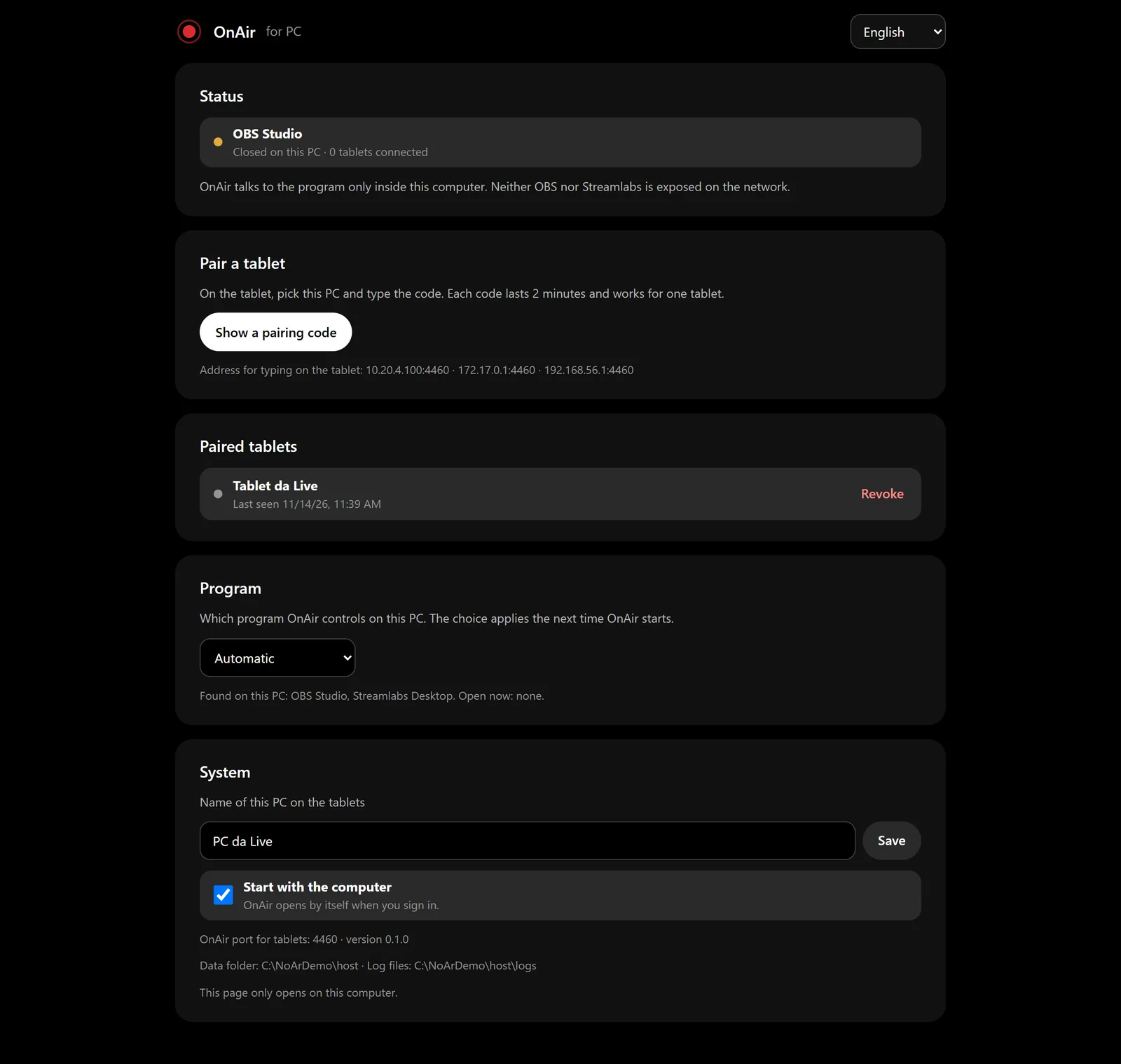
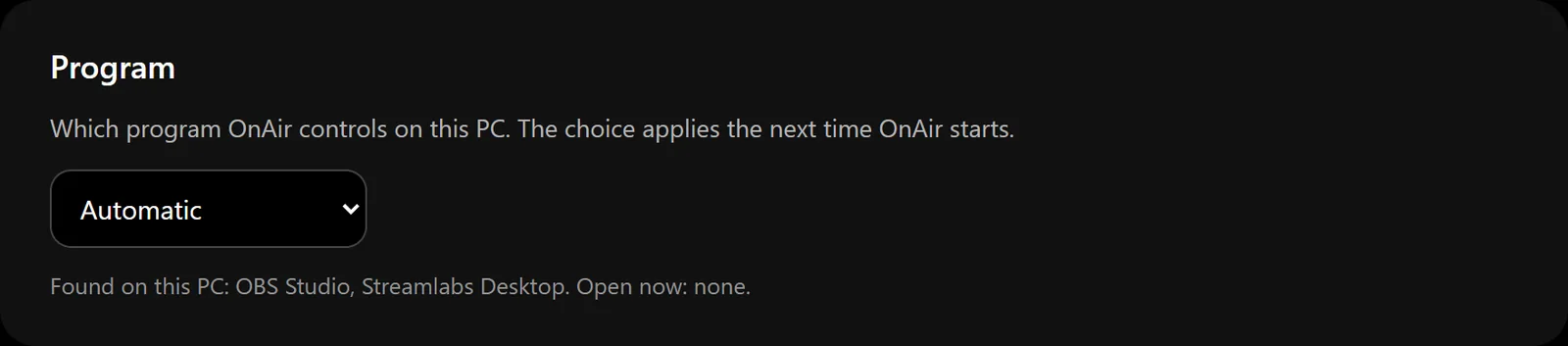
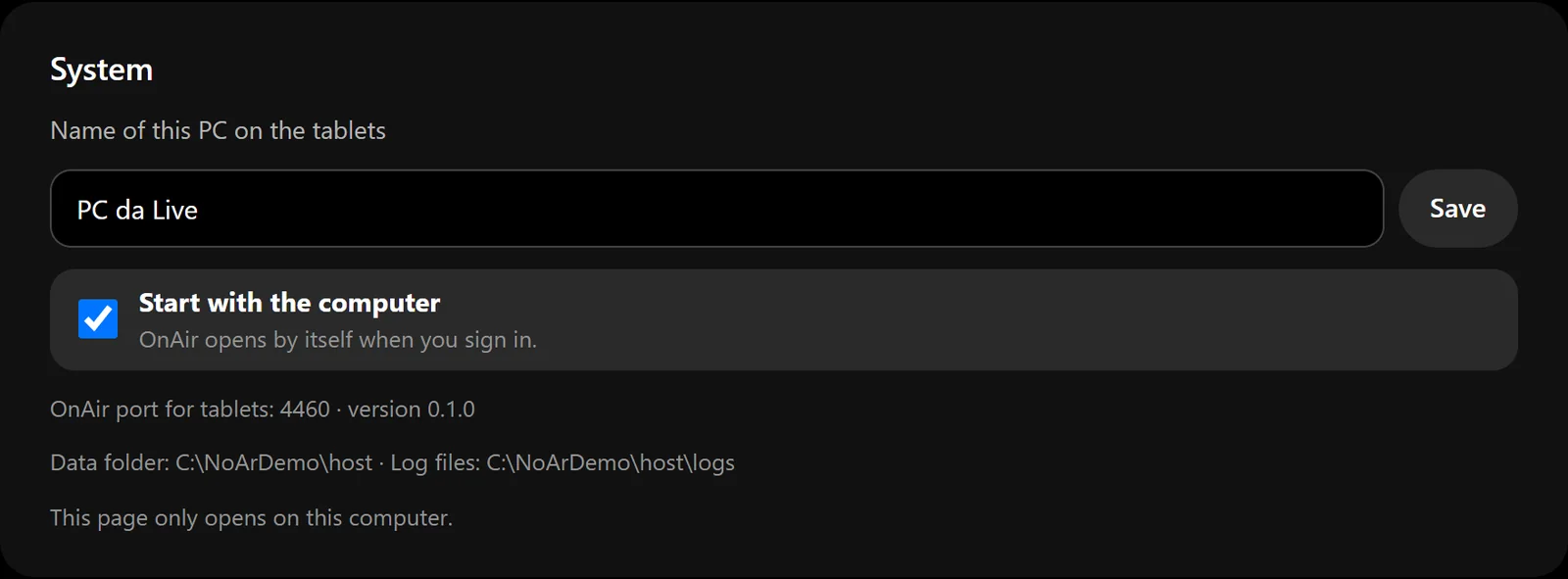
On that page you see the connection status, get the pairing code, see and revoke the paired tablets, and choose which program the host controls (Automatic, OBS Studio or Streamlabs Desktop; the choice applies the next time the host starts). Start with the computer is on by default, and you can turn it off there.

2. Prepare the program
OBS Studio
- Check that OBS is version 28 or newer (Help › About).
- Open Tools › WebSocket Server Settings and check Enable WebSocket server. The default port is 4455.
- If the server has a password, the host tries to read the OBS configuration by itself. If it cannot, the tablet will ask for the password (see “OBS needs the password” under troubleshooting).
Streamlabs Desktop
There is nothing to set up. Just keep Studio Mode off: with it on, Streamlabs does not report which scene is on air, and OnAir never lights the tally without being sure.
If both programs are open, the host picks according to what you set on its page (Automatic, OBS or Streamlabs).
3. Pair the tablet
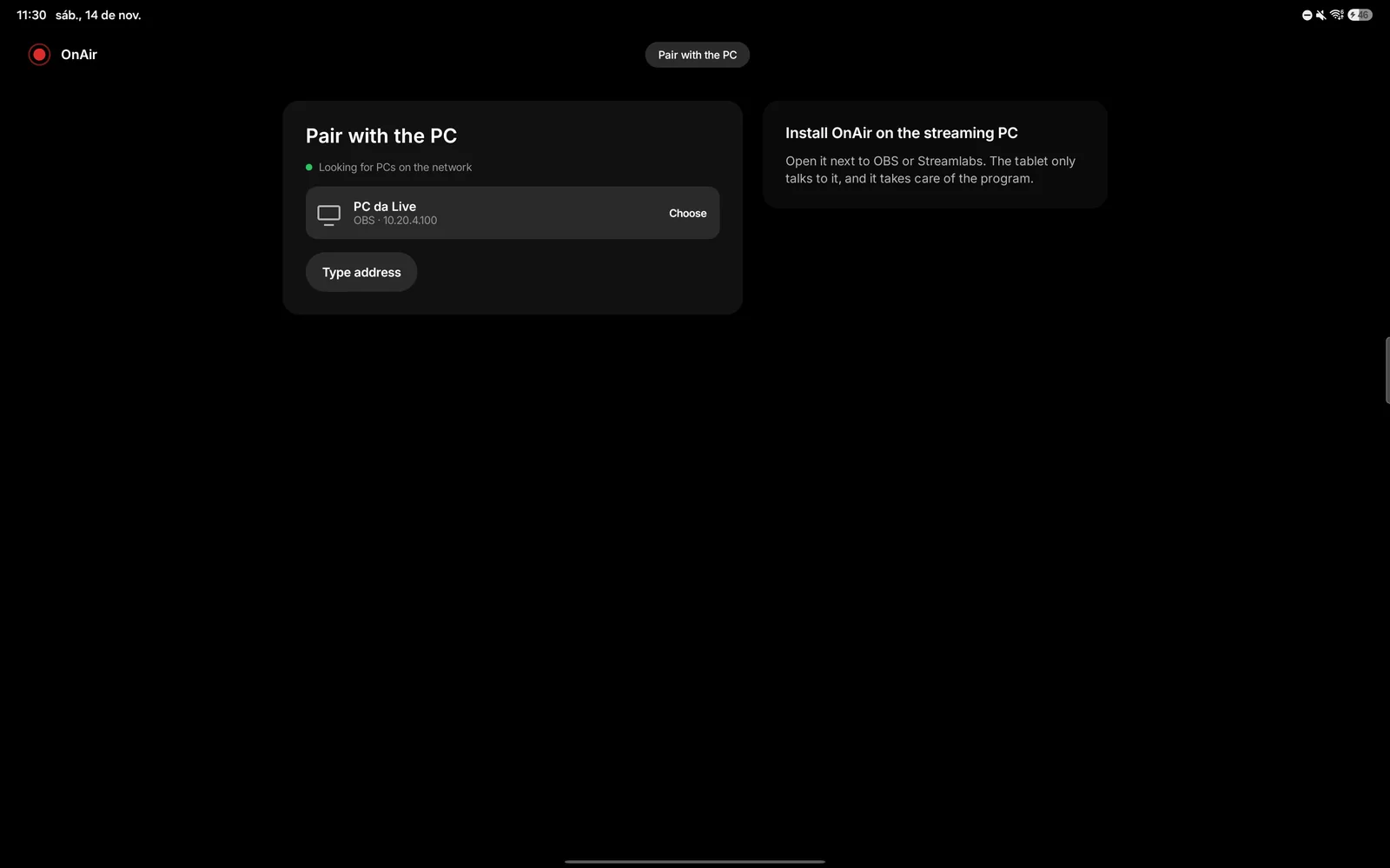
- Install the OnAir app on the tablet: from Google Play once it is published, or from the APK on the download page (download the file on the tablet, tap it, allow installing from unknown sources when Android asks, and confirm; the page also explains Android developer verification). Then open the app. The first time, it shows Install OnAir on the streaming PC and starts Looking for PCs on the network.
- Tap Choose on your PC. The tablet asks for the 6-digit code.
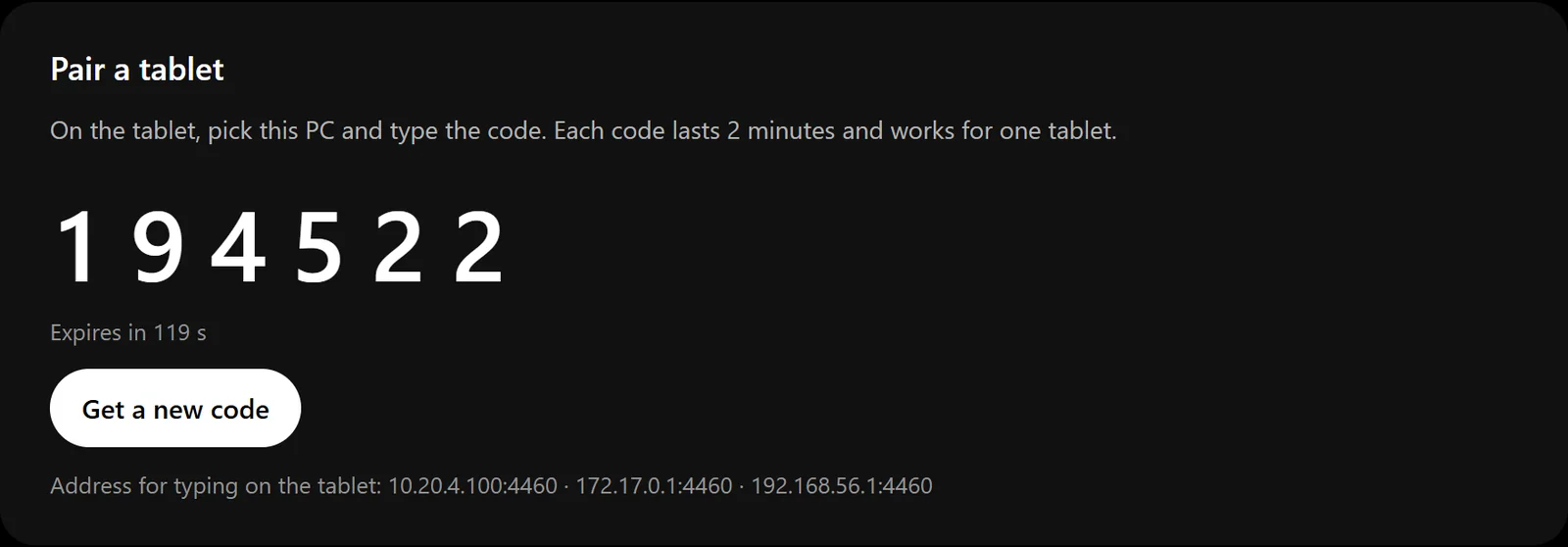
- On the PC, open the host page (tray icon, Open settings) and use Show a pairing code. The Pair a tablet shortcut in the tray menu leads to the same place.
- Type the 6 digits on the tablet and tap Pair.
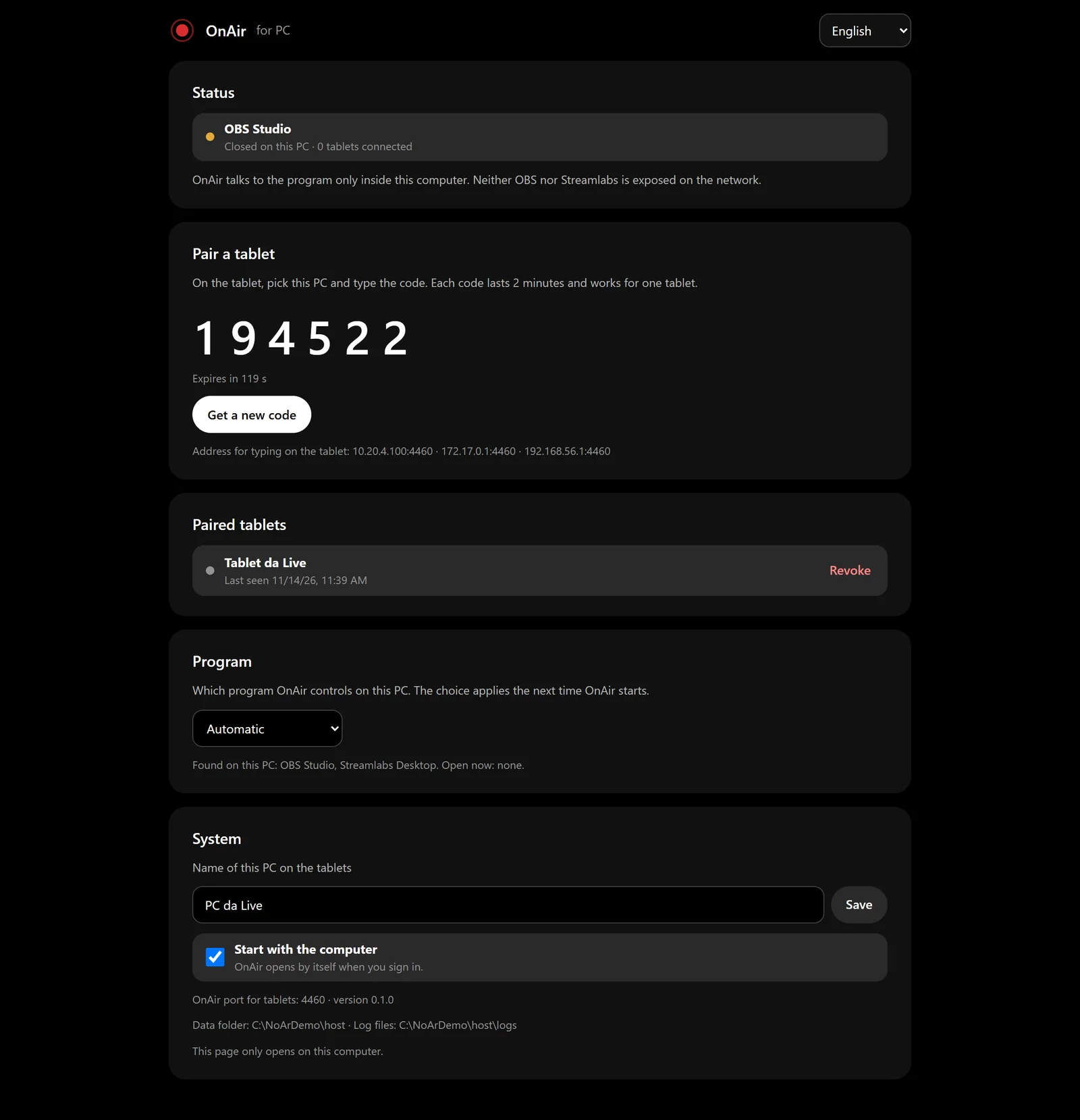
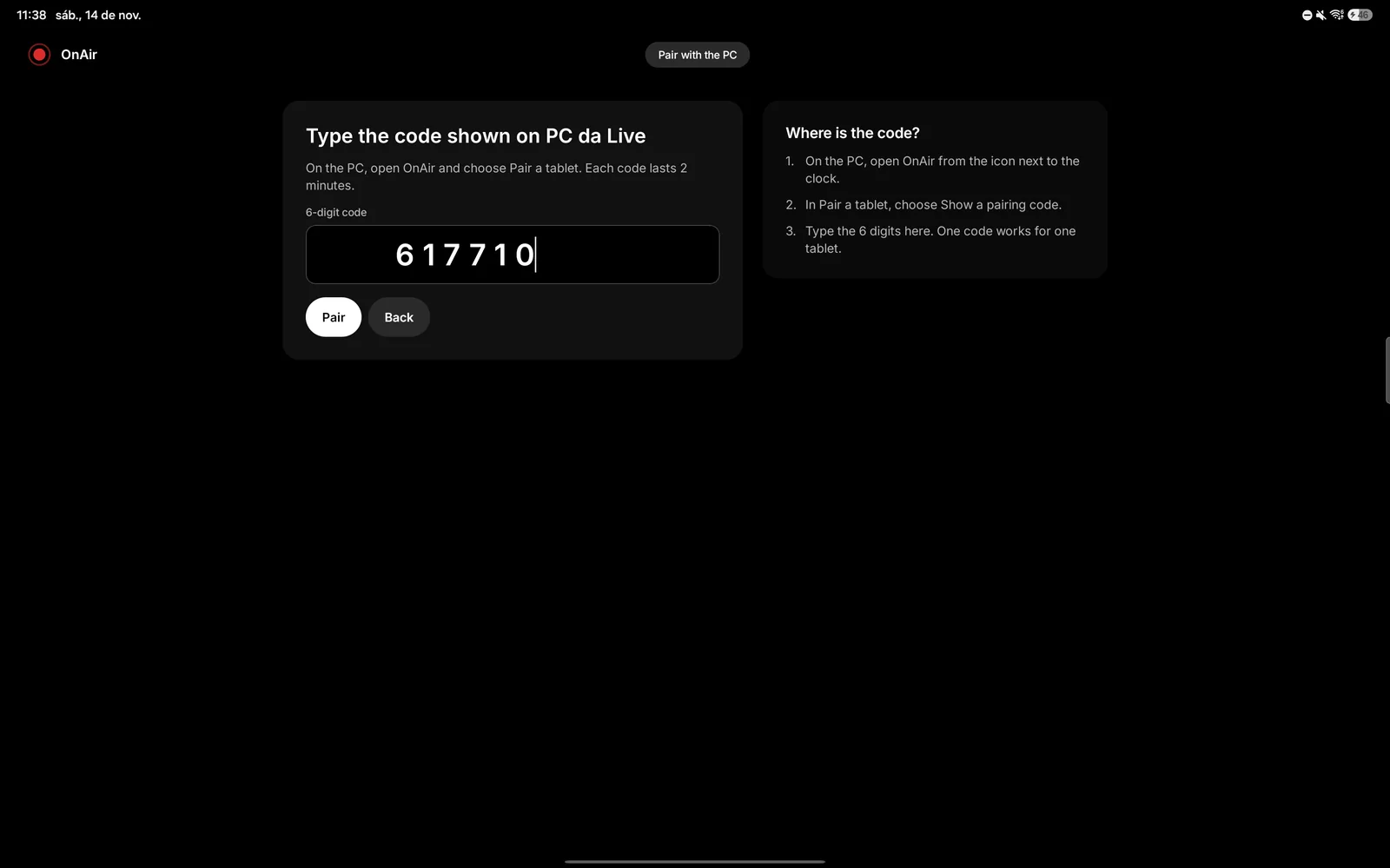
Each code lasts 2 minutes and works for one tablet. After 5 wrong attempts the code is invalidated: get a new one.
If no PC shows up
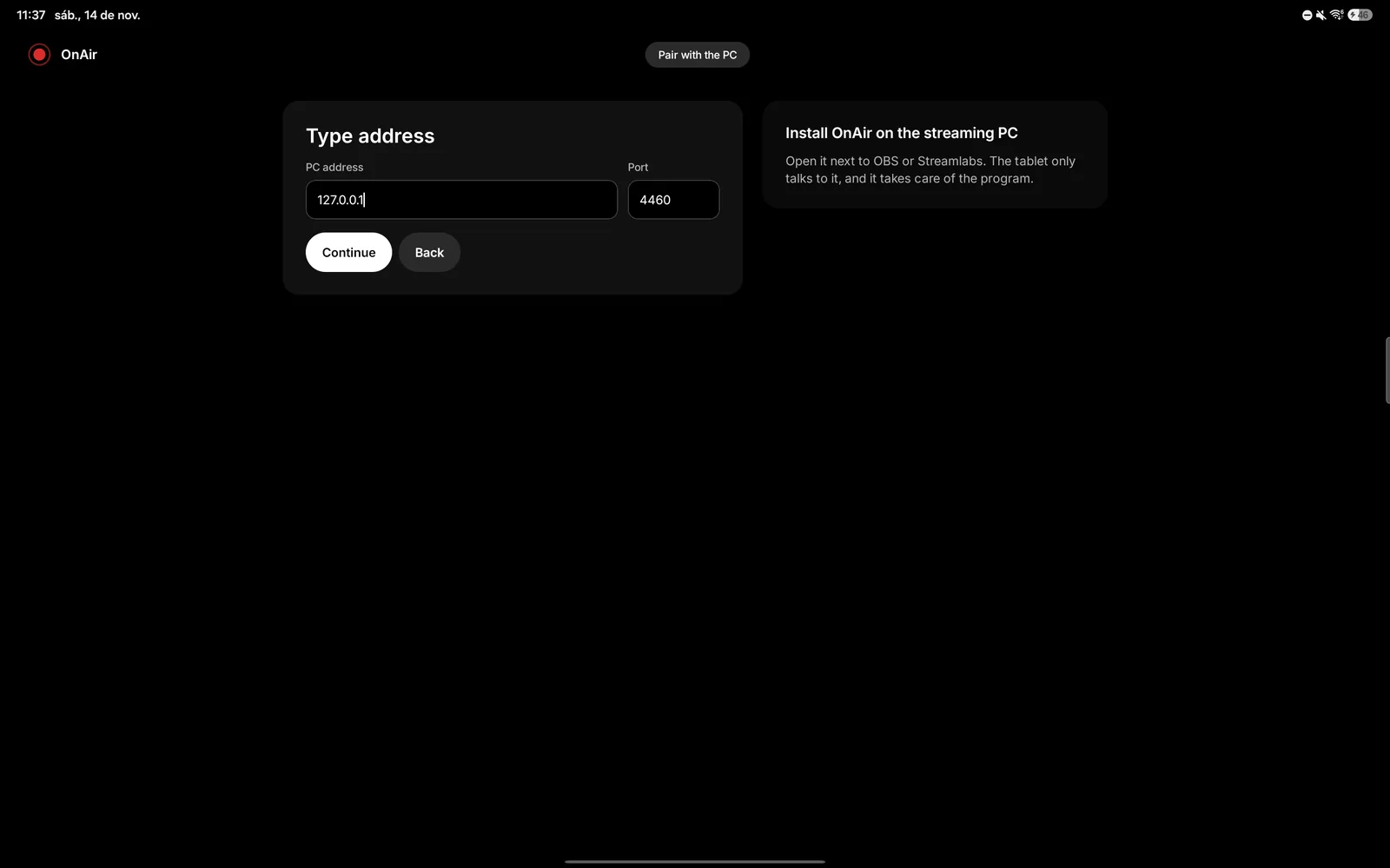
Some routers block discovery on the network. Tap Type address, enter the PC address (something like 192.168.0.24) and port 4460. The host page shows the right one under “Address for typing on the tablet”. If the tablet still cannot reach the PC, see the firewall item under troubleshooting.
Undoing a pairing
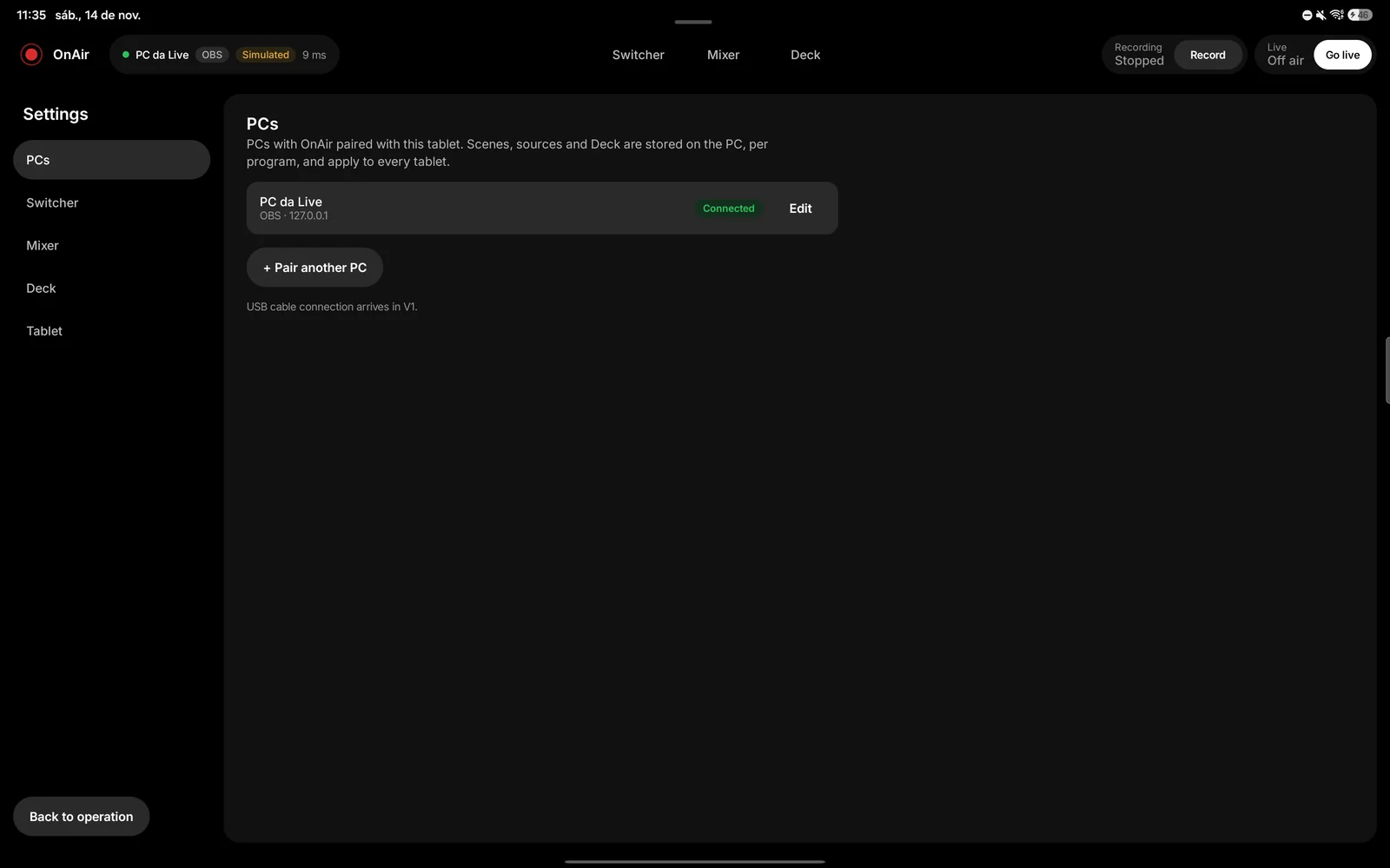
On the PC, under Paired tablets, tap Revoke: that tablet will have to pair again. On the tablet, Settings › PCs › Forget this PC removes the PC from the tablet's list; the Deck and settings stay stored on the PC.
4. Quick setup
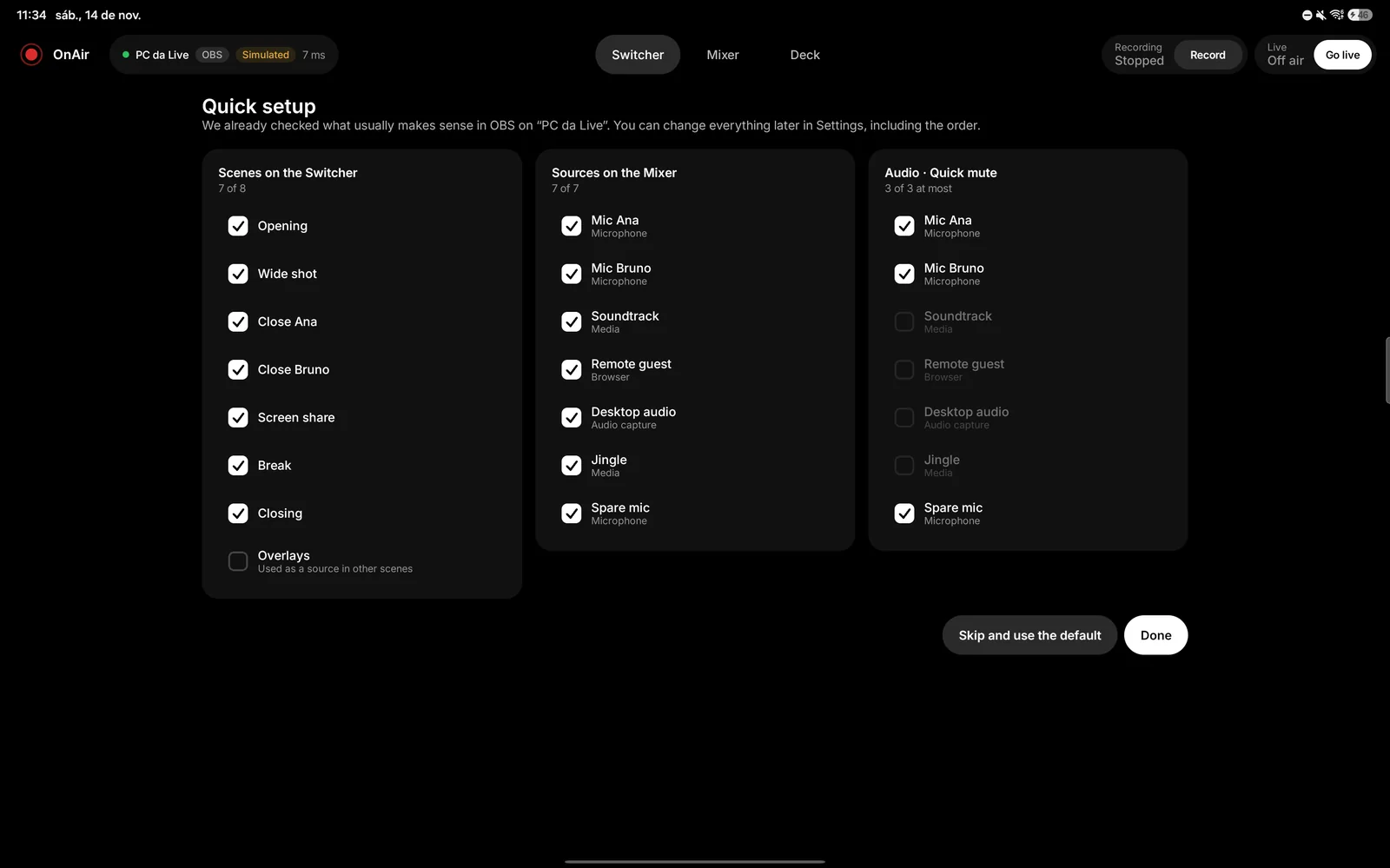
After the first pairing with a program, OnAir shows Quick setup with three lists already checked with what usually makes sense: the Switcher scenes, the Mixer sources and up to 3 sources for the audio Quick mute. Review them, uncheck what you do not want and tap Done. Or choose Skip and use the default. You can change everything later in Settings, including the order.
5. The screens
Top bar
Shows the connected PC and program, with the connection state and response time. It has the Live buttons (Go live, On air, End) and the Recording buttons (Record, Pause and Resume in OBS, Stop), and the elapsed time. End and Stop take a 2-second hold. A simple tap only shows the “Hold for 2 seconds to confirm” notice. The brand menu leads to Paired PCs, Settings and Pair another PC.
Switcher
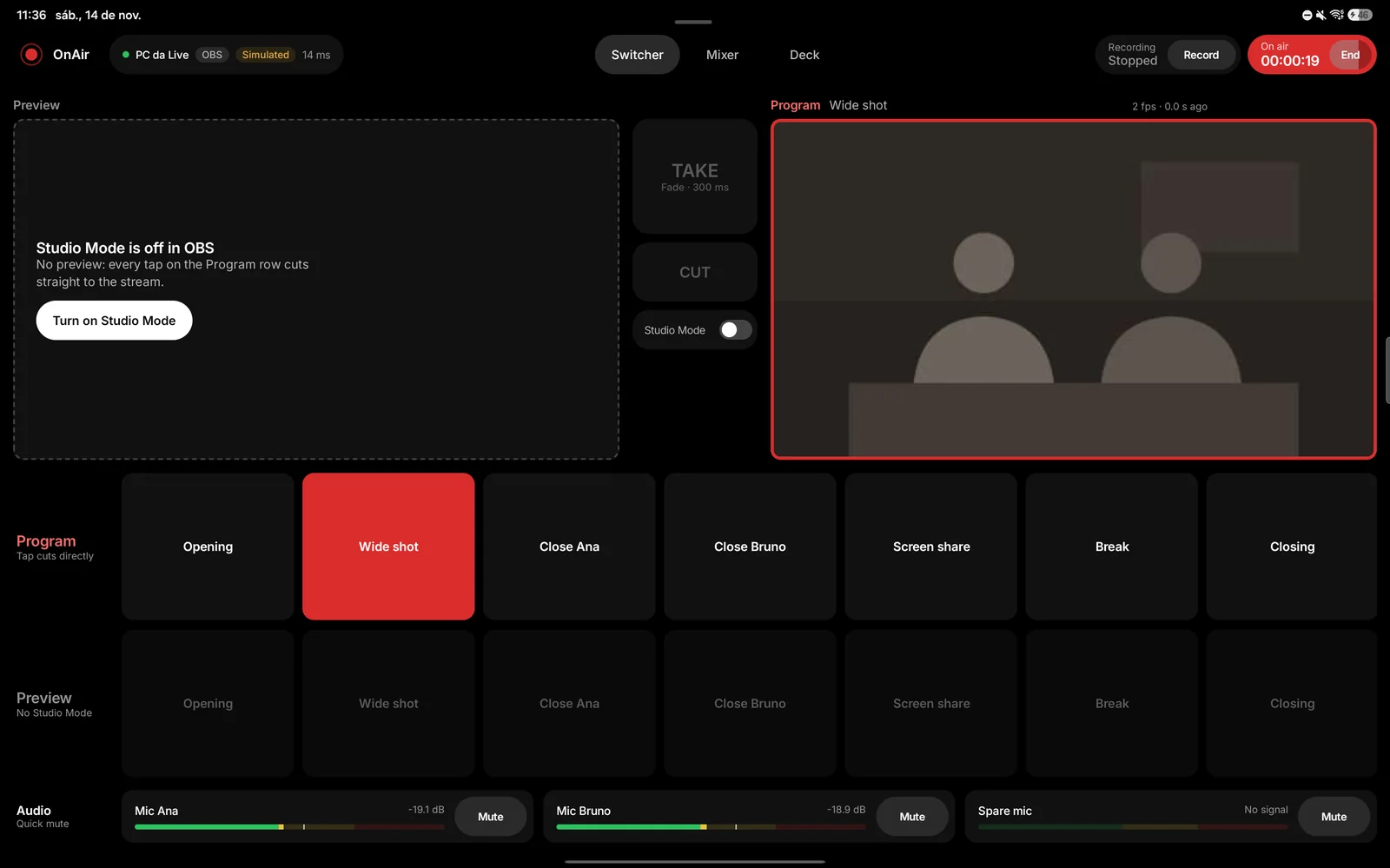
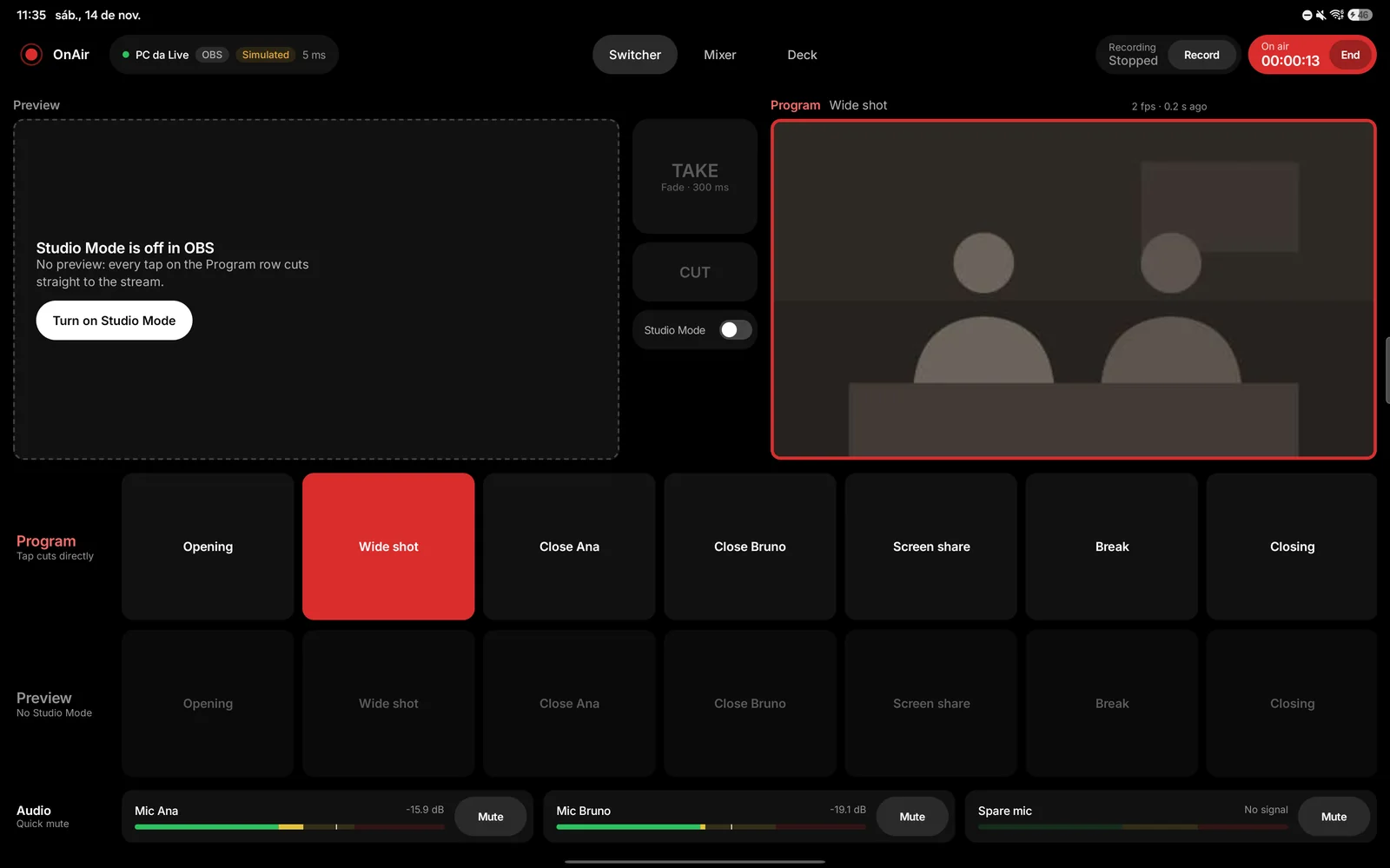
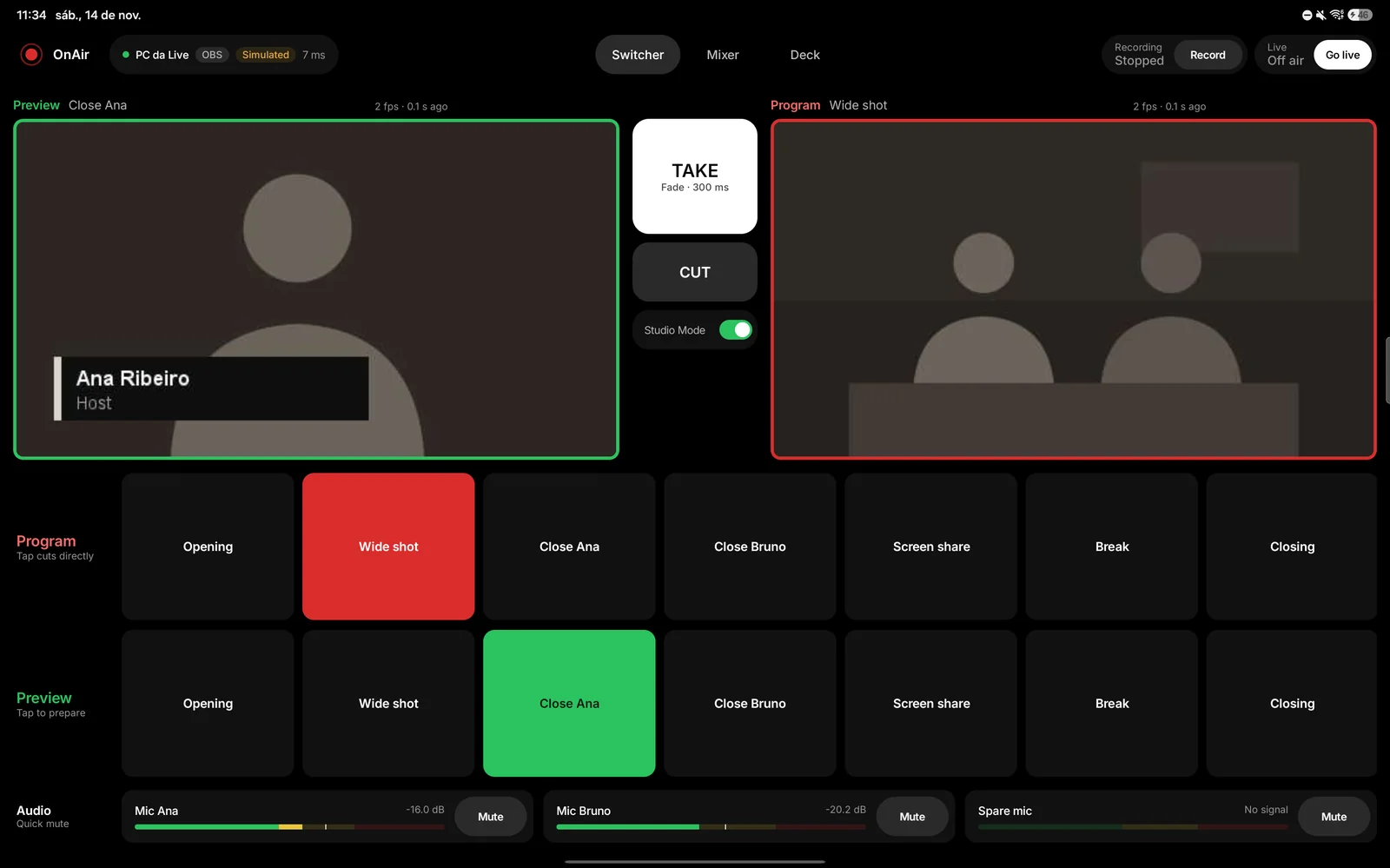
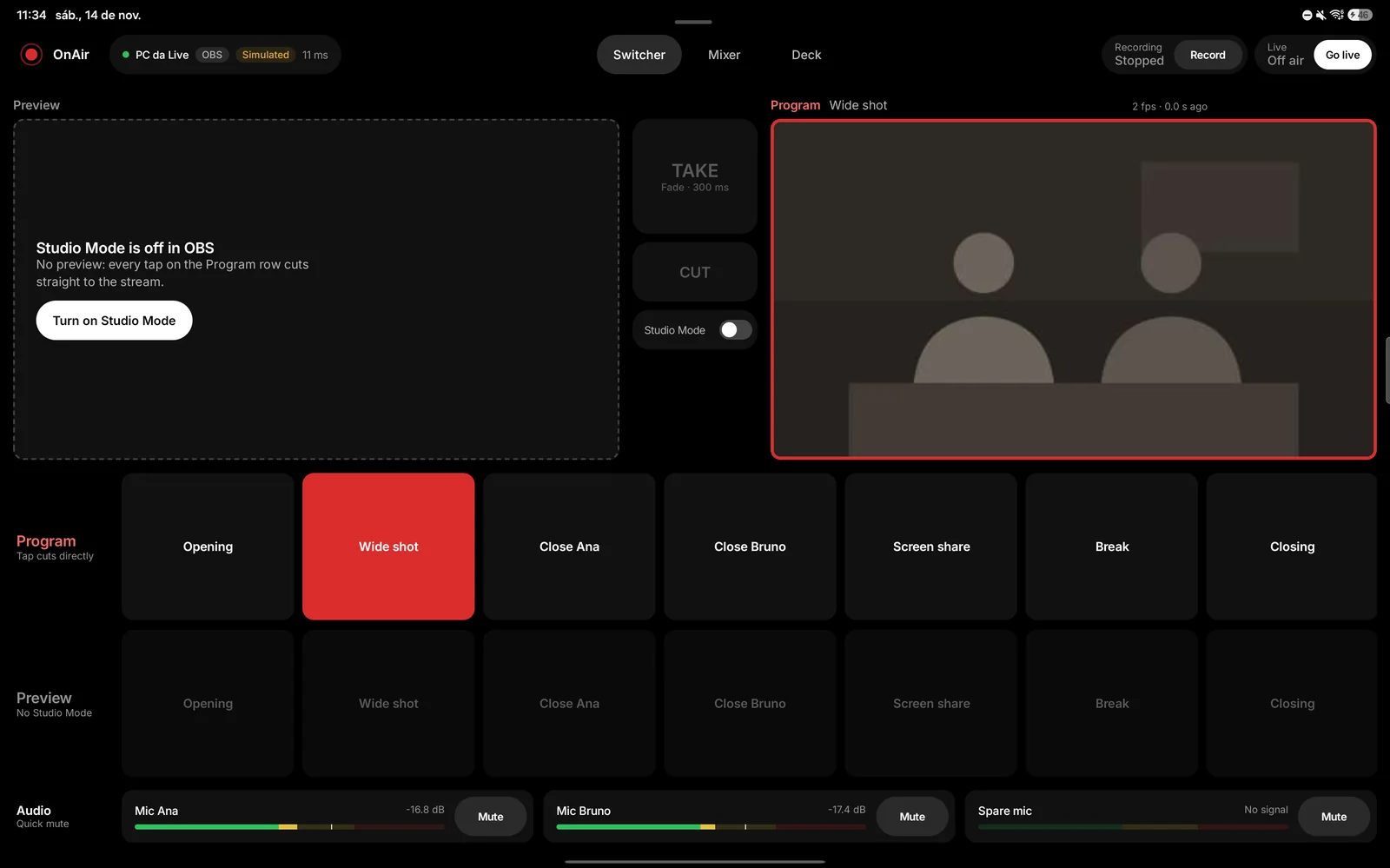
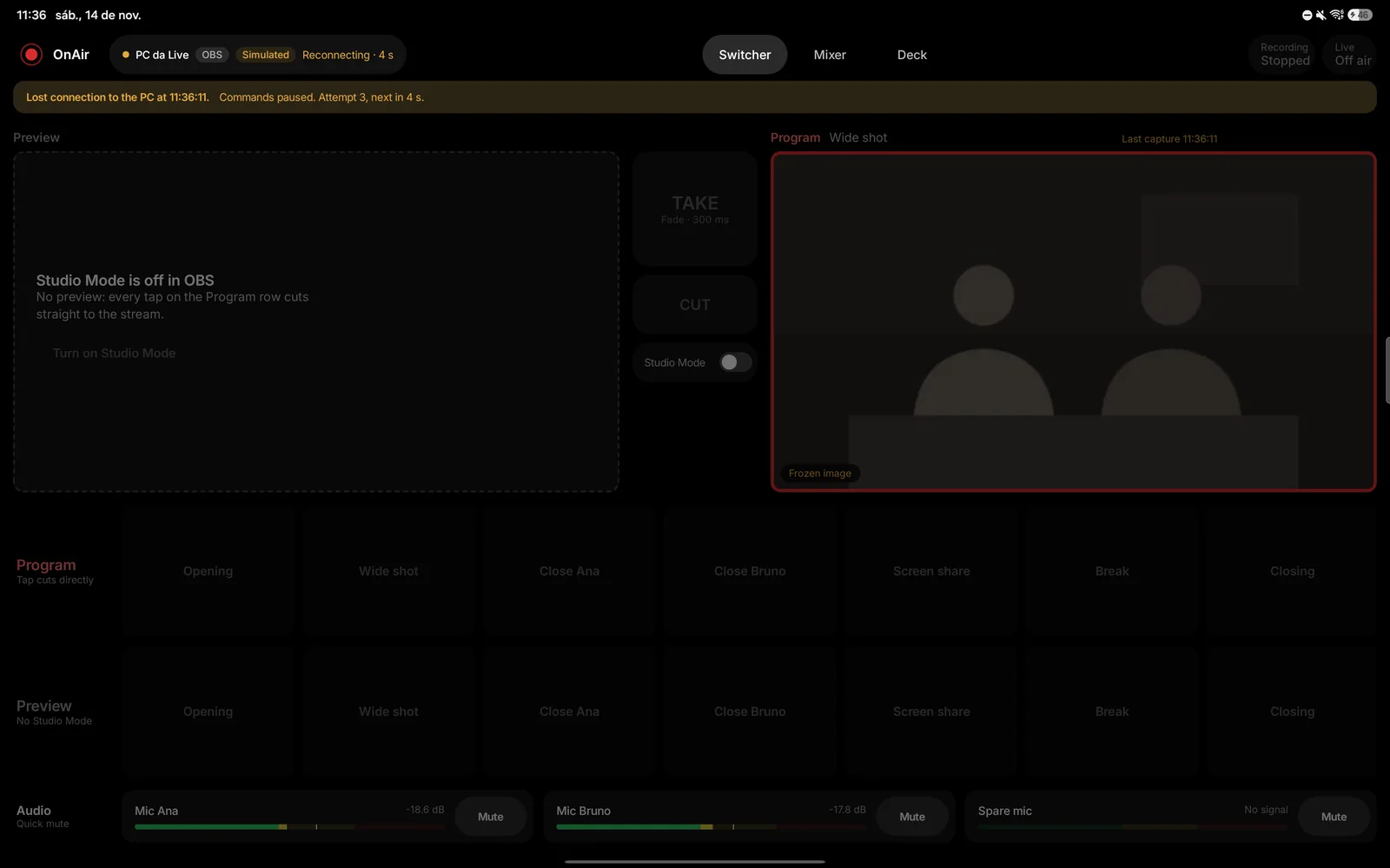
A Program row (red frame: what is being broadcast) and a Preview row (green frame: what is set up), plus the TAKE and CUT buttons. Tap a scene on Preview to set it up, and TAKE to send it on air with the configured transition. CUT cuts straight. Tapping a scene on the Program row cuts directly to it. Commands fire the moment you touch, not when you lift.
- OBS without Studio Mode: the Switcher shows “Studio Mode is off in OBS”, and each tap on the Program row cuts directly. A button turns Studio Mode on.
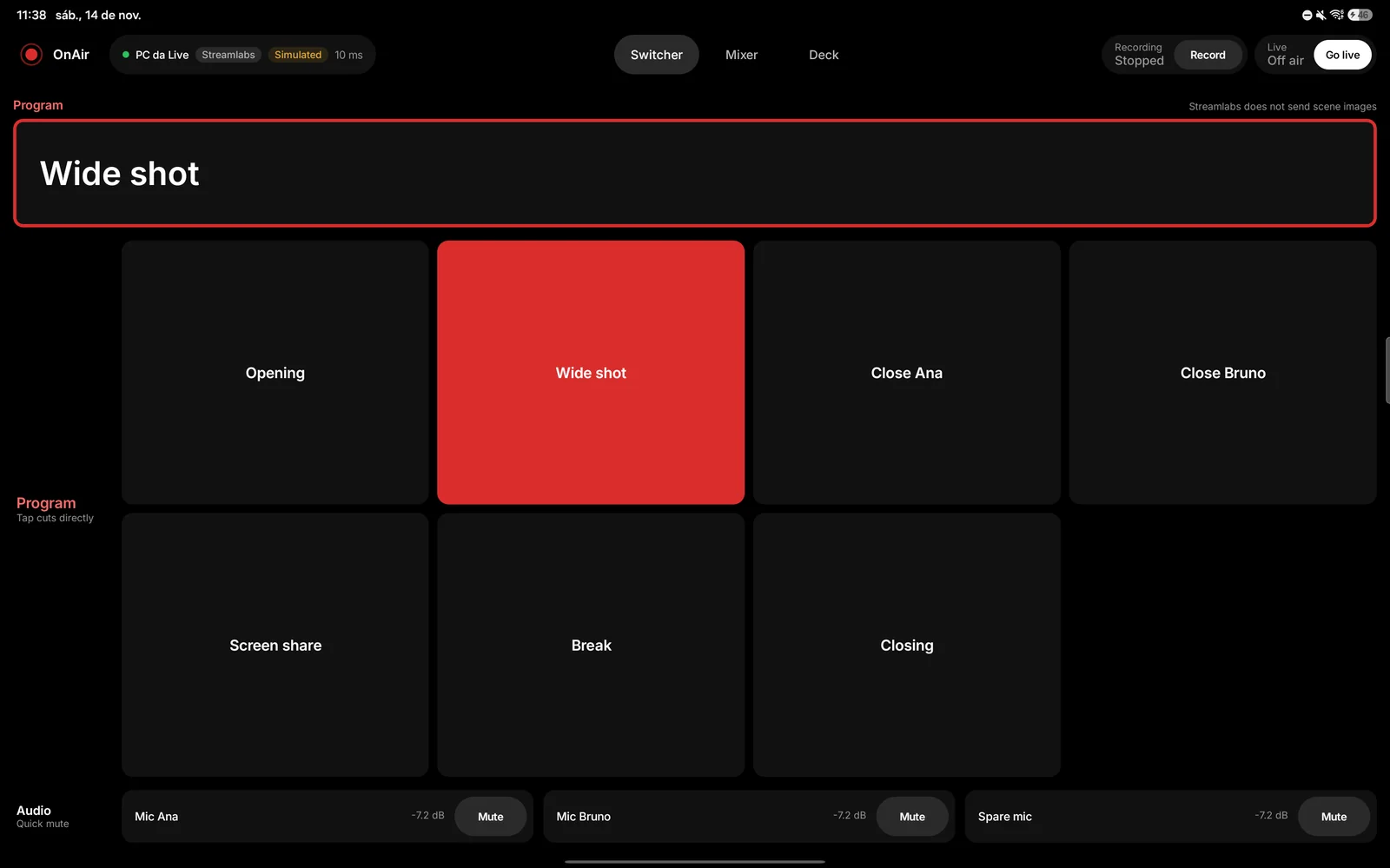
- Streamlabs: a simple version, with direct cut and no thumbnails, because Streamlabs does not send scene images. If Studio Mode is on in Streamlabs, the Switcher says so and offers to turn it off.
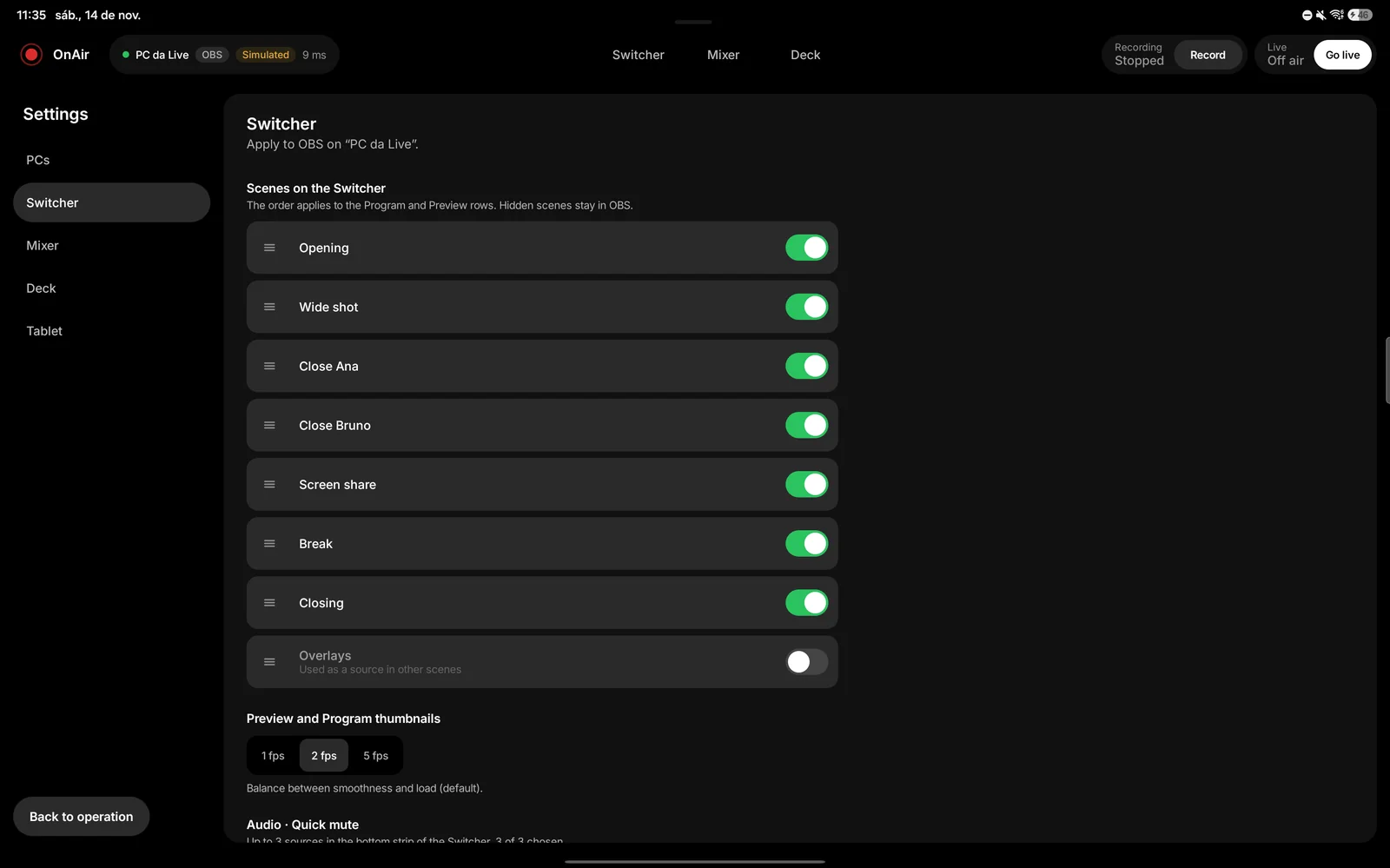
- Thumbnails (OBS only): at 1, 2 or 5 frames per second, in Settings › Switcher. More frames look smoother and weigh more on the PC during the show.
- Quick mute: an audio strip with up to 3 sources, at the bottom of the Switcher, for fast muting.
Mixer
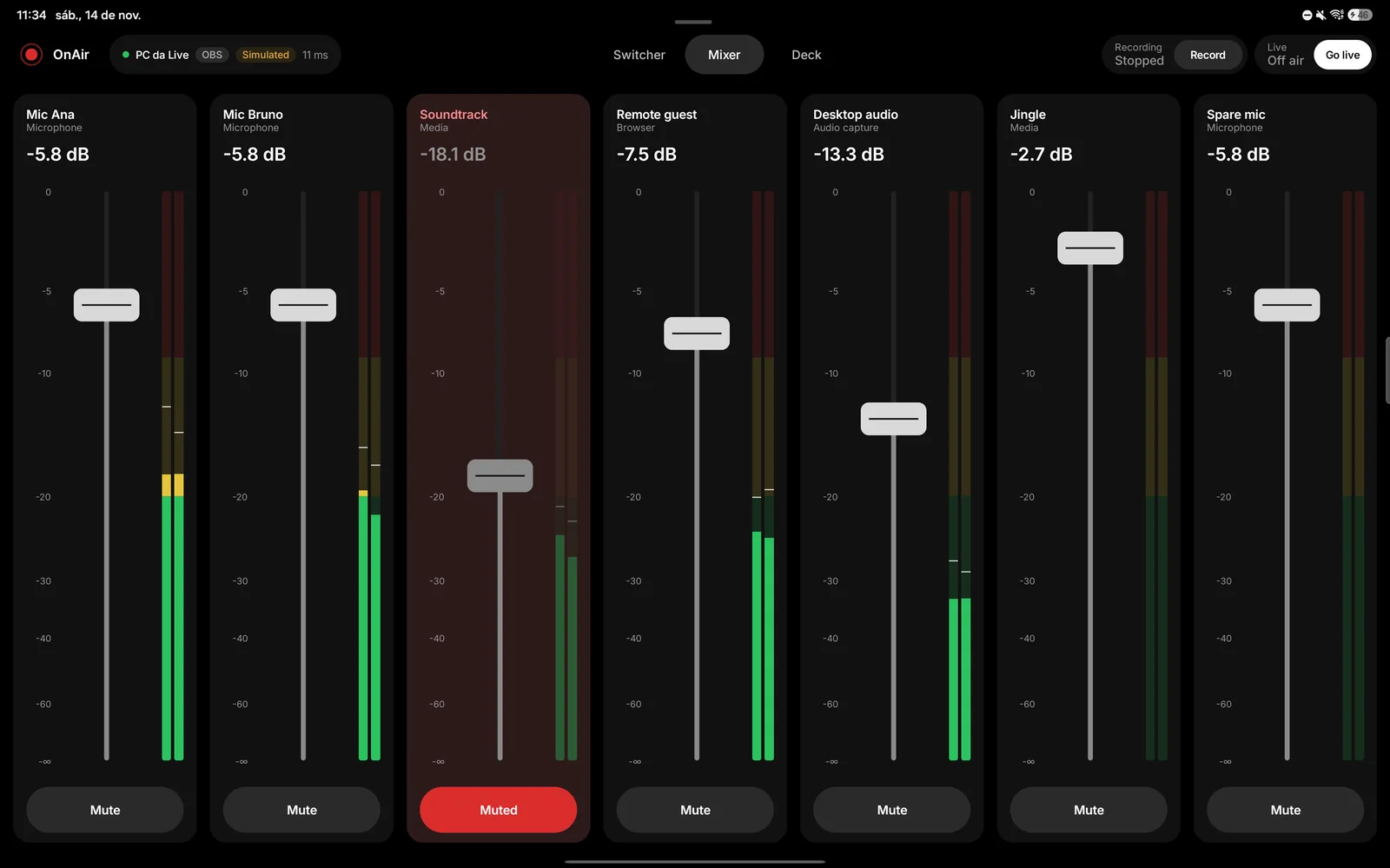
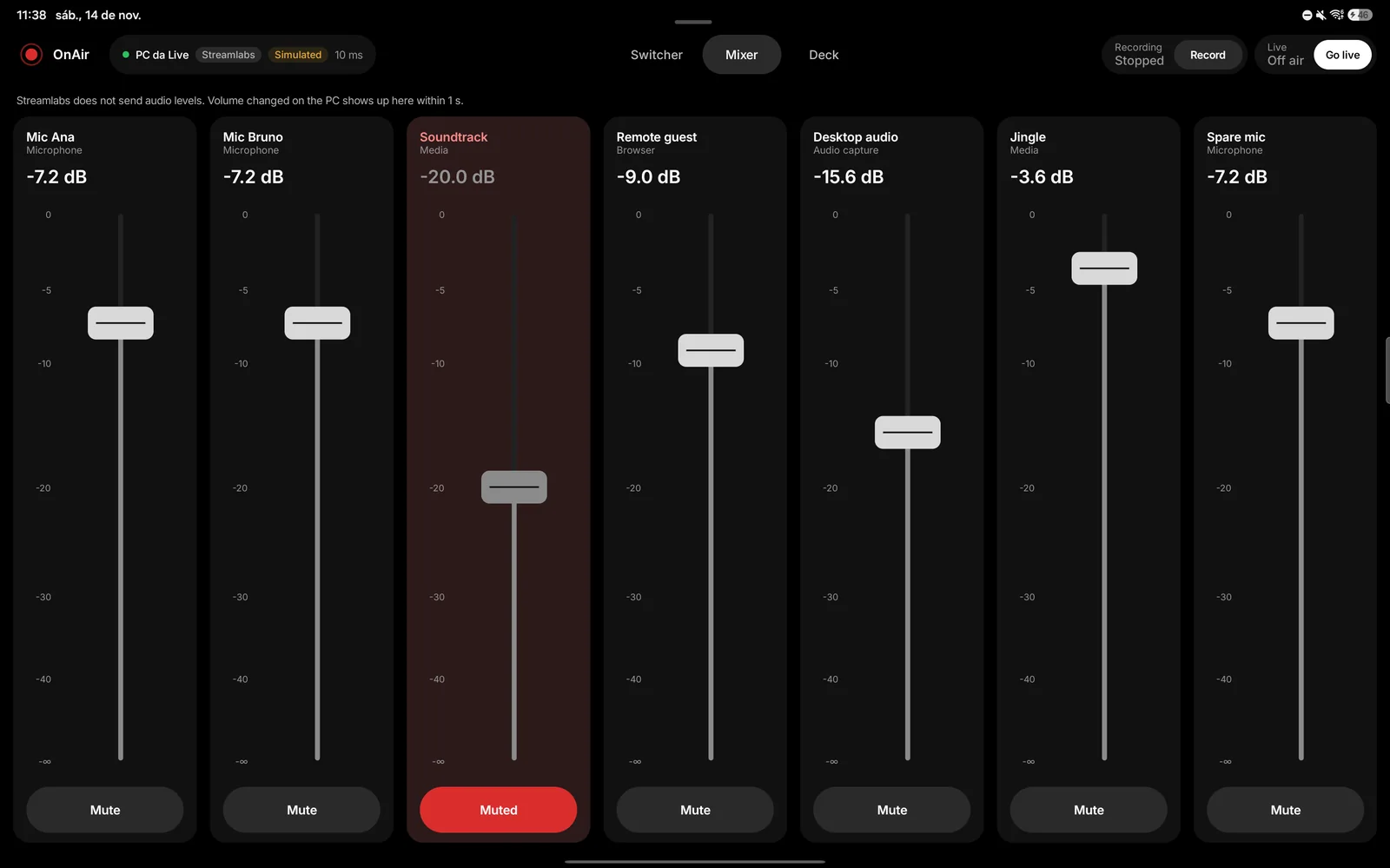
One strip per audio source, with a fader, a mute button and the level in decibels. The strip order is the one you set in Settings. With OBS there are level meters and a clip indicator. With Streamlabs there are no meters, because the program does not send audio levels; a volume you change on the PC shows on the tablet within 1 second.
Deck
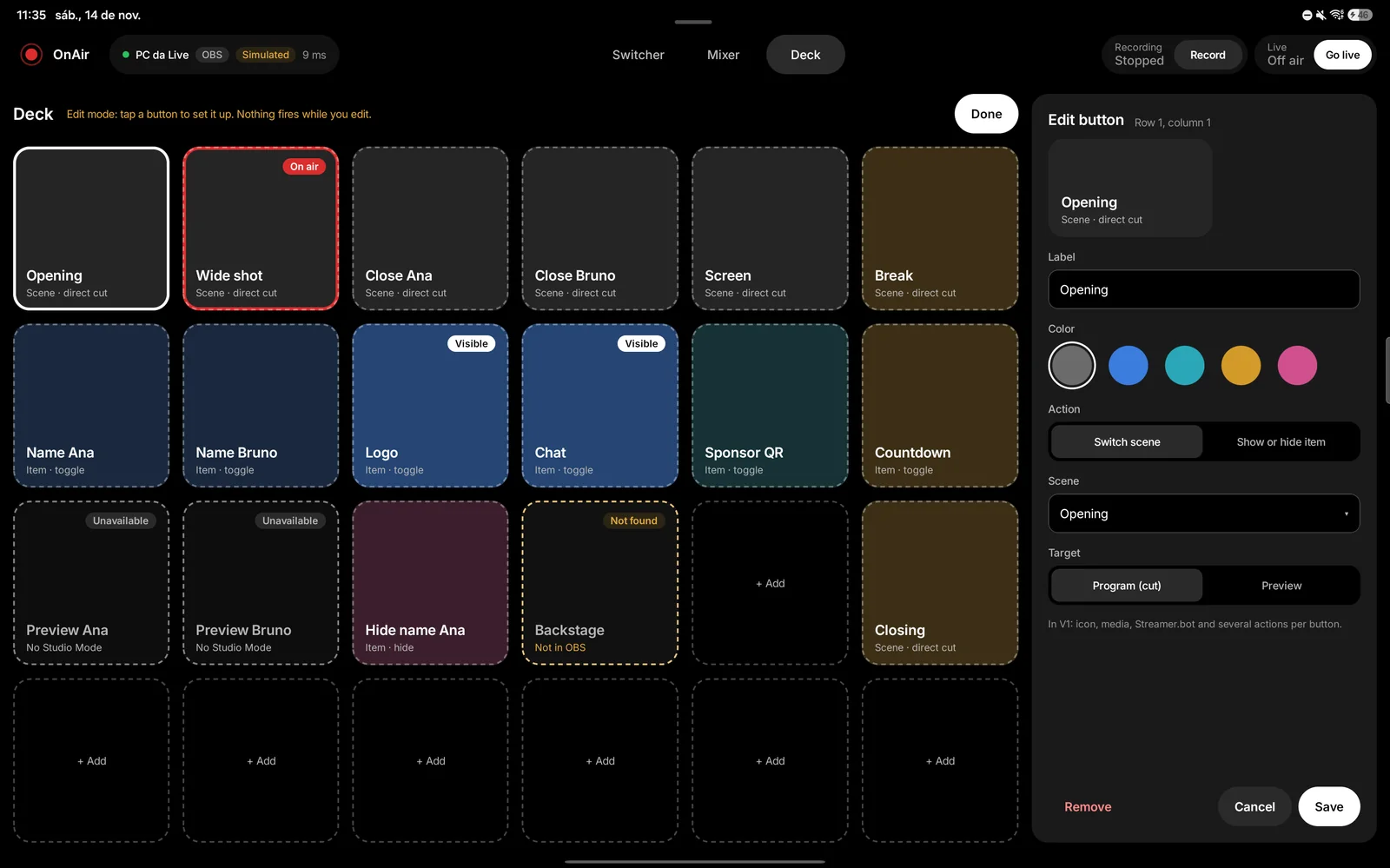
A 6 by 4 grid of buttons. Each button has a label, one of five colors (Graphite, Blue, Cyan, Amber and Pink) and an action: Switch scene (direct cut to Program, or to Preview) or Show or hide item (Toggle, Show or Hide). The button lights up from the real state in the program. If the scene or item no longer exists, the button says “Not found”.
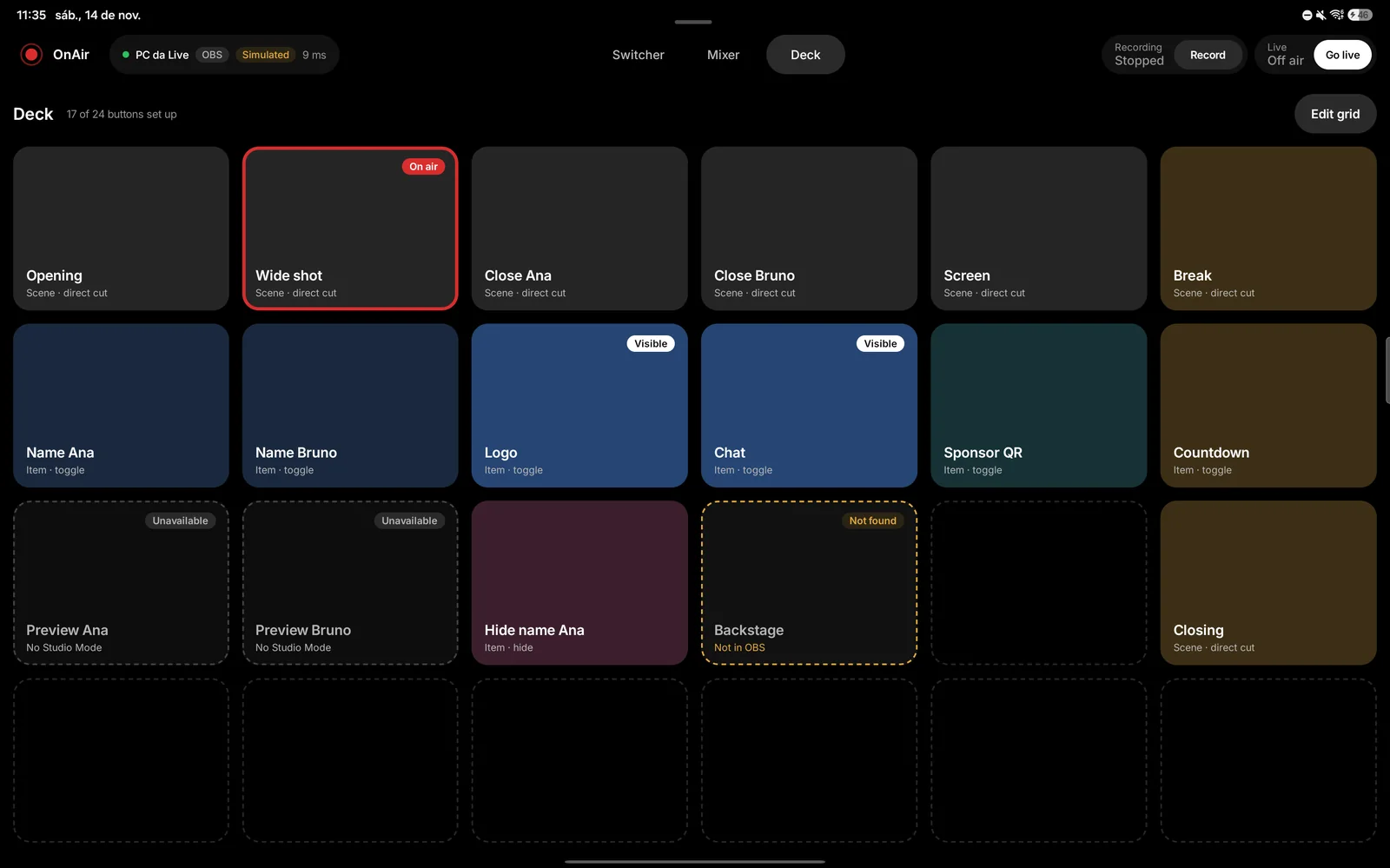
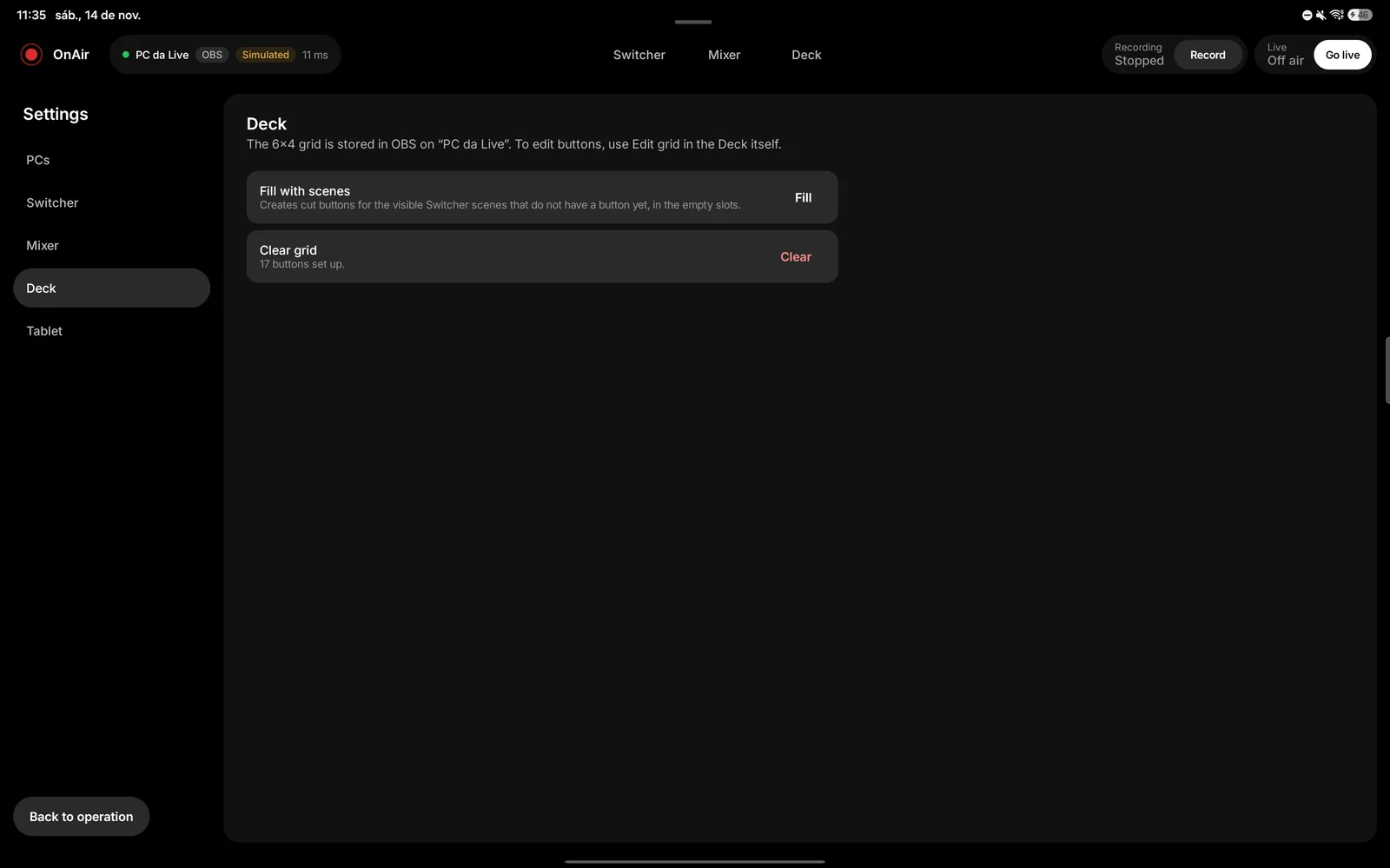
Tap Edit grid to configure. In edit mode nothing fires: you tap a button, set label, color and action, and confirm. Done returns to operation. To create a cut button for every visible Switcher scene at once, use Settings › Deck › Fill with scenes.
Settings
The brand menu (top corner) opens Settings, which save by themselves (you see “Saved”). Sections:
- PCs: paired PCs, the PC name on this tablet, the OBS WebSocket server password (only if the host cannot read it by itself) and Forget this PC.
- Switcher: which scenes show and in what order, thumbnail quality and the Quick mute sources.
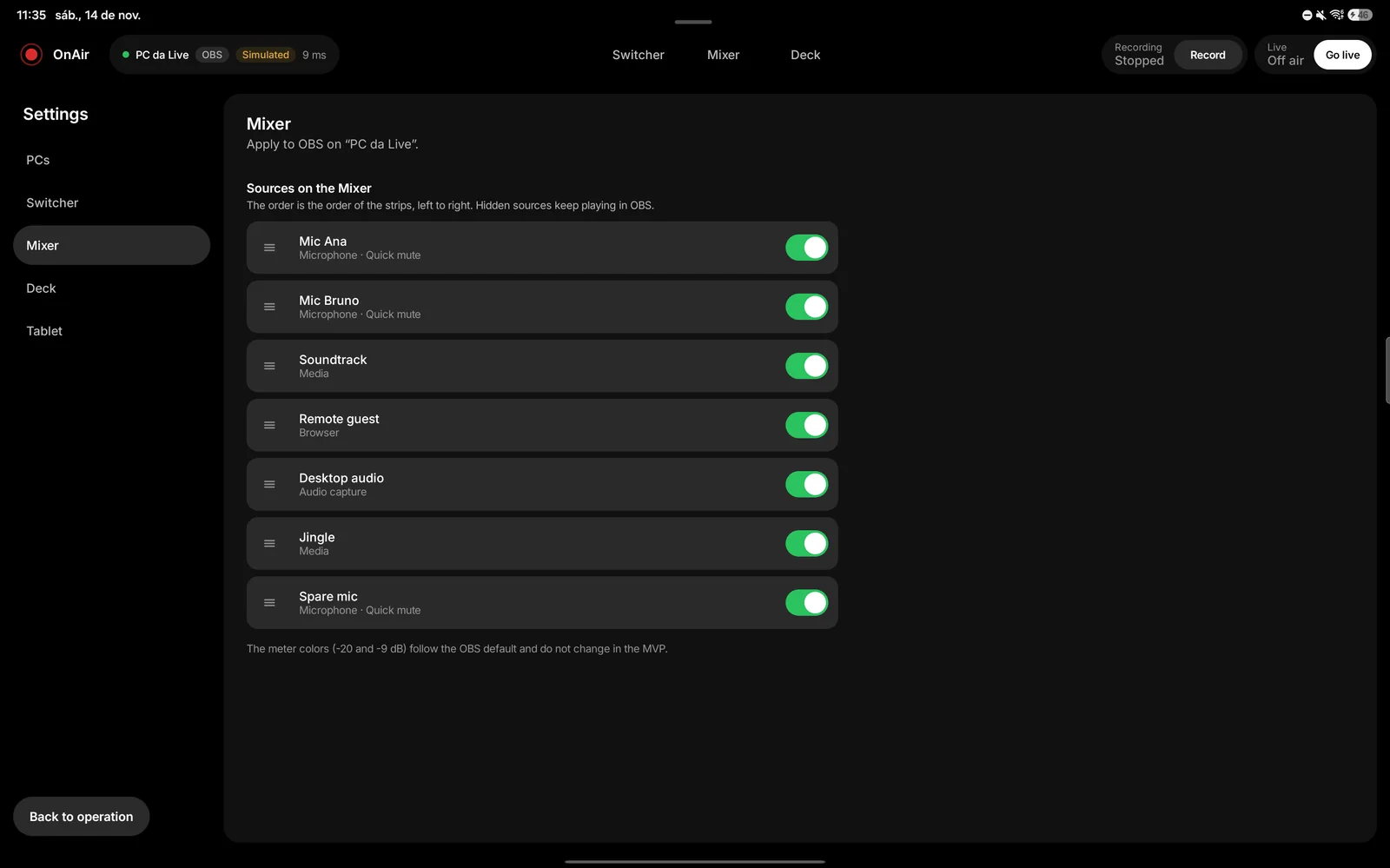
- Mixer: which sources show and in what order.
- Deck: fill with scenes and clear the grid.
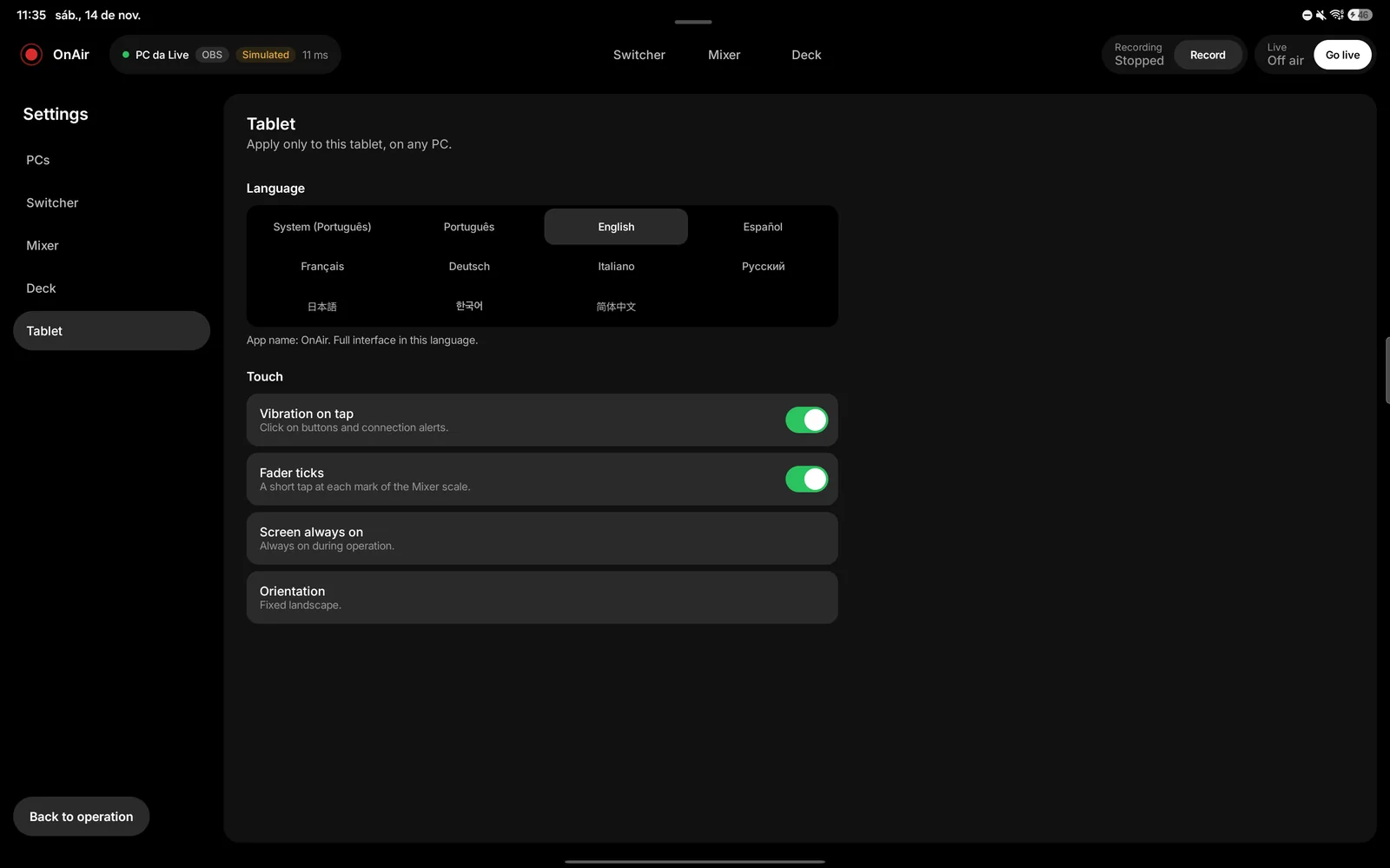
- Tablet: language (System, Portuguese or English), vibration on tap, fader ticks, screen always on and orientation (fixed landscape). They apply only to this tablet.
The scene, Mixer and Deck setup lives on the PC, separately per program, and applies to every tablet of that PC.
6. When the connection drops
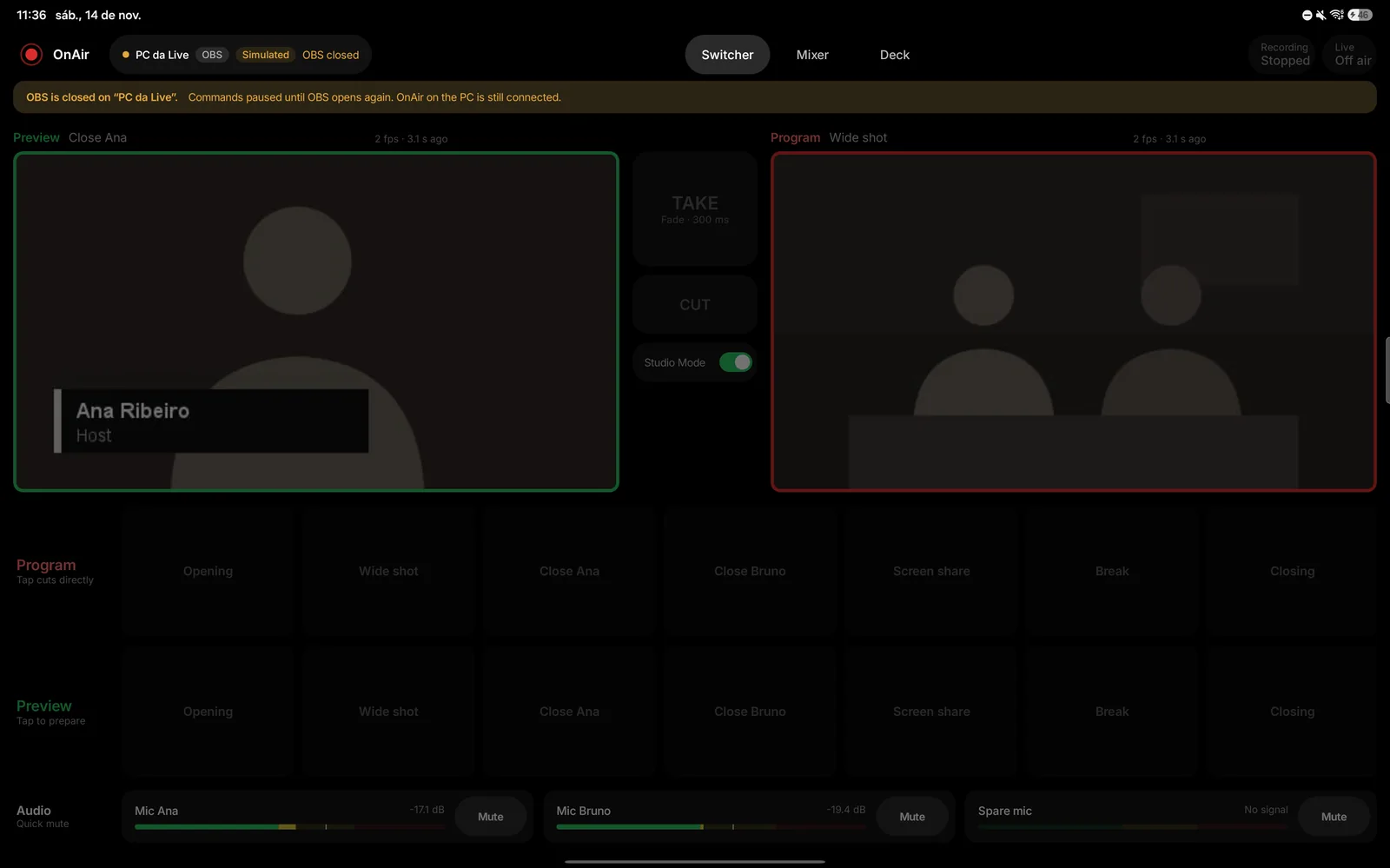
If the tablet loses its connection to the PC, OnAir shows “Lost connection to the PC” and retries by itself at growing intervals (1, 2, 4, 8 and 10 seconds, then every 10). Meanwhile you see Commands paused and the buttons fire nothing.
If it was the program that closed on the PC (OBS, say), the tablet stays connected to the host and shows “OBS closed on PC”. When you open the program again, OnAir rebuilds its state from it instead of assuming what was there before.
7. Troubleshooting
OBS needs the password
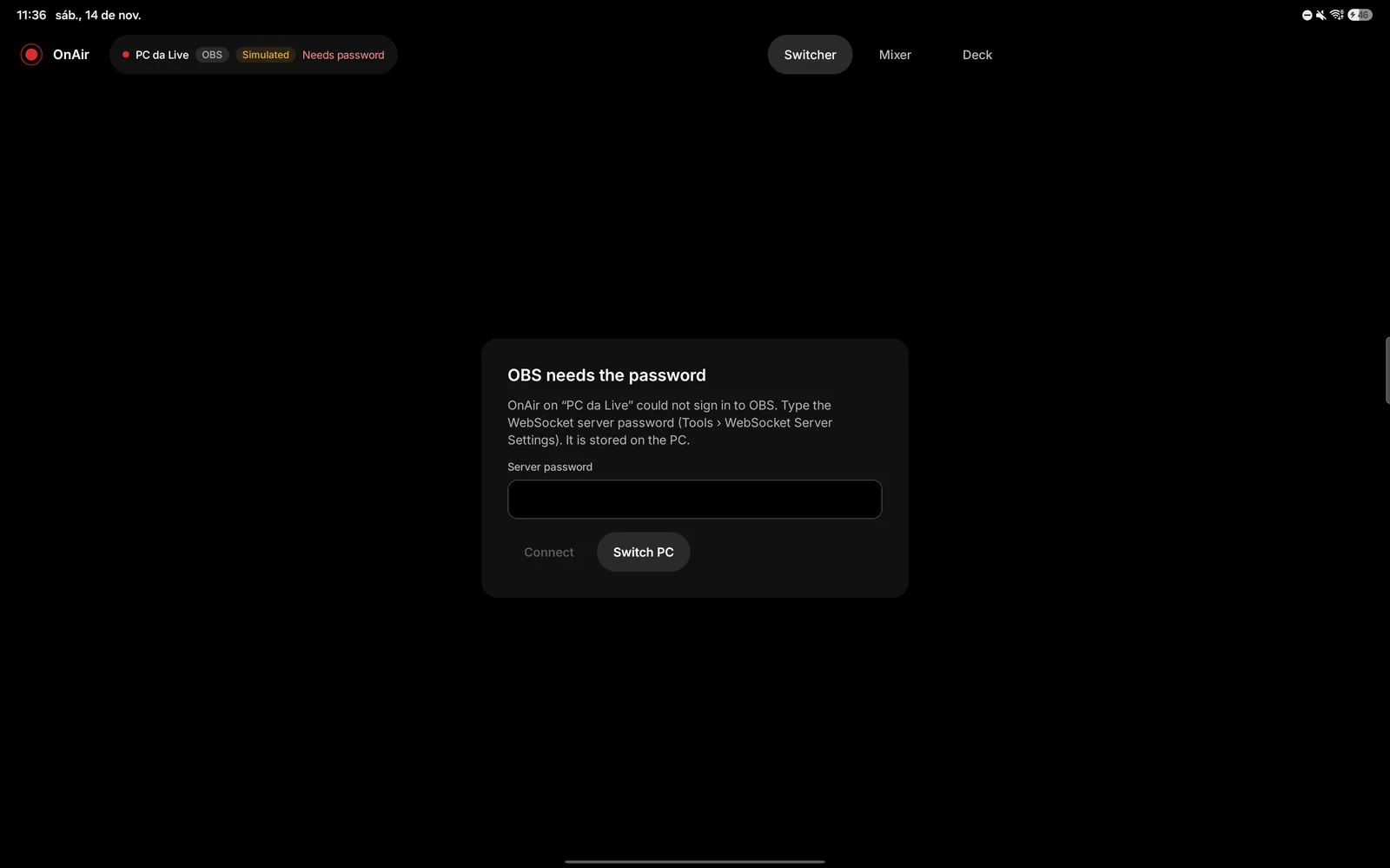
The tablet shows “OBS needs the password”. Type the WebSocket server password (Tools › WebSocket Server Settings, in OBS) and tap Connect. It is stored on the PC. Later, in Settings › PCs, you can send it again. If it is refused, check that it matches what OBS shows.
“OBS WebSocket server is off”
In OBS, open Tools › WebSocket Server Settings and turn on Enable WebSocket server.
“OBS version not supported”
OnAir needs OBS 28 or newer. Update OBS.
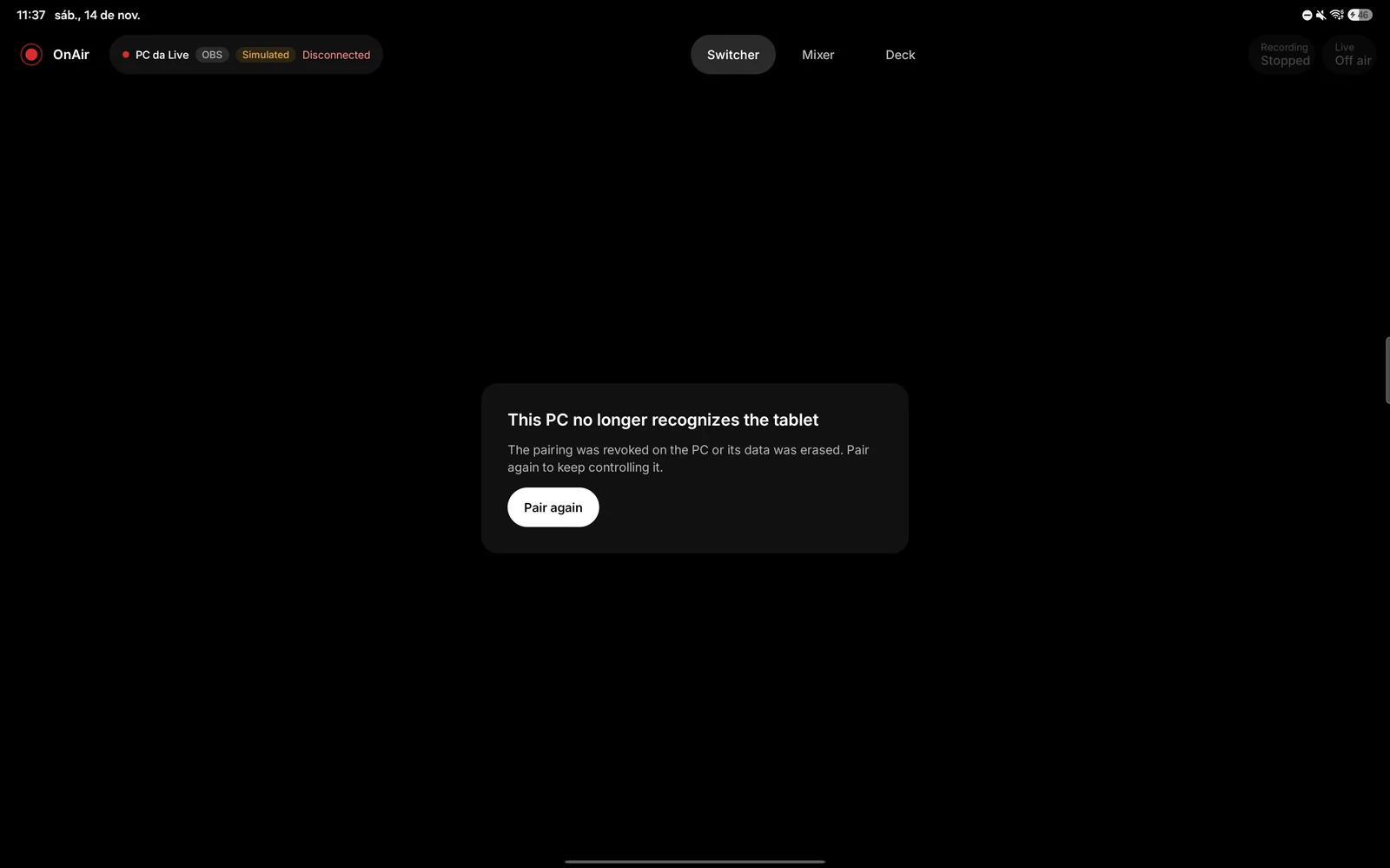
“This PC no longer recognizes the tablet”
The pairing was revoked on the PC, or the host data folder was erased. Tap Pair again and repeat the pairing.
“Update needed”
The tablet and the OnAir Host are on versions that do not talk to each other. Update both.
“The scene no longer exists” or a button saying “Not found”
The scene or source was renamed or removed in the program. If renamed, fix the button in Edit grid. Scene and source names come from the program and are never translated.
“Studio Mode is on in Streamlabs”
In Streamlabs, Studio Mode makes the program stop reporting the on-air scene. Turn it off in Streamlabs or with the Turn off Studio Mode button on the Switcher. The Mixer and the Deck item buttons keep working.
The tablet cannot find the PC
Check that both are on the same network and that the host is open (tray icon). Try Type address with port 4460. If it still cannot reach it, the Windows Firewall may be blocking: the installer creates the “NoAr Host” rule, but it does not exist when the host runs without being installed. The host page warns you and shows the command, which you paste into a Command Prompt or PowerShell opened as administrator. The host never changes the firewall by itself. The command, with the default install path, is:
netsh advfirewall firewall add rule name="NoAr Host" dir=in action=allow program="C:\Program Files\NoAr\NoAr.exe" enable=yes profile=any
As a last resort for testing, a USB cable with adb reverse tcp:4460 tcp:4460 and the address 127.0.0.1 on the tablet works as a shortcut.
Where are the logs and the host data?
In the host data folder: %APPDATA%\NoAr on Windows. Logs are in logs inside it. The host page itself shows the data and log folders at the bottom. If you ask support for help, attach the most recent log file.
How do I uninstall?
In Windows Settings › Apps, uninstall NoAr. Uninstalling removes the shortcut, the firewall rule and the automatic start. Your data stays in the data folder; delete %APPDATA%\NoAr to remove it. On the tablet, uninstall the app or clear its data.